When you pick an industrial touch screen monitor for harsh places, you should look for strength and the ability to handle tough situations. Monitors used in factories, mining, or outside need to deal with dust, water, very hot or cold temperatures, and strong shaking. Important things to think about are:
- Protection and strong build
- Touch technology and clear display
- Good connections
- Fit for your industry
- Simple care and saving money
You must always choose a monitor that fits your work and location.
Key Takeaways
- Pick a monitor that is very strong and tough. Make sure it has high protection ratings like IP65 or IP69K. These ratings help the monitor resist dust, water, and rough places.
- Choose the right touchscreen type for your needs. Resistive screens work well with gloves and in hard places. Capacitive screens are faster and let you use more fingers. But they may need special gloves to work.
- Find a display that is very bright, at least 1000 nits. It should have anti-glare features too. This helps you see the screen in sunlight or bright rooms.
- Make sure the monitor has the right ports for your machines. Check if it can be mounted safely in your workspace.
- Think about the total cost, not just the price. Include cleaning, maintenance, and warranty. This helps you save money and use your monitor longer.
Durability & Protection
Enclosure Materials
When picking an industrial touch screen monitor, check what the enclosure is made of. Strong materials like stainless steel and aluminum help keep the monitor safe from harm. Aluminum has a special layer that fixes itself if it gets scratched. This makes aluminum great at fighting off rust, especially in wet or salty places. Anodized aluminum is even stronger because its protective layer is thicker. Stainless steel also stops rust by making a thin, hidden layer on its surface. But if this layer gets hurt, rust can start, so you might need to take extra care in tough places.
Rugged monitors often use tough glass, like chemically strengthened or laminated glass. This glass can take hard hits and helps stop the screen from breaking. Some enclosures have features that stop people from messing with or breaking the monitor. The IK rating system shows how well a monitor can take hits. For example, IK01 means it can handle a small bump, but higher numbers mean better protection.
Tip: If you work where there is a lot of salt, water, or chemicals, aluminum enclosures usually last longer and need less care than stainless steel.
IP Ratings
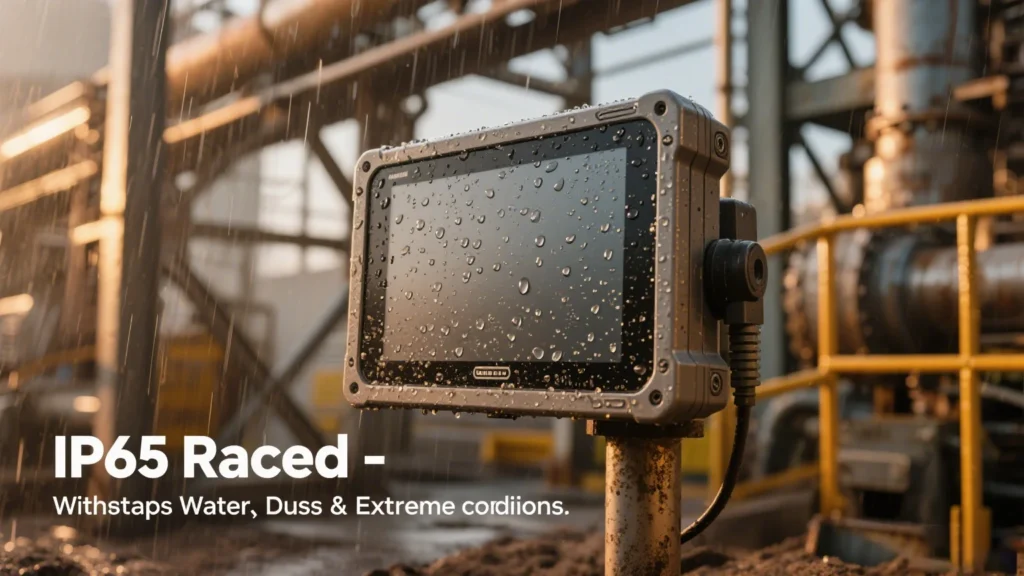
Always look at the IP rating when choosing a monitor for tough places. The IP rating tells you how well the monitor keeps out dust and water. In most factories, IP65 and IP66 are common. An IP65 monitor keeps out dust and can handle water sprayed from a hose. This is good for places with dust and low-pressure water. If you need more protection, IP66 monitors can take strong water jets and also keep out dust. For the hardest jobs, like food or medicine plants, IP69K is best. It protects against hot, high-pressure water.
Here is a quick comparison:
| Feature | IP65 | IP69K |
|---|---|---|
| Dust Protection | Dust-tight (complete protection) | Dust-tight (complete protection) |
| Water Protection | Low-pressure water jets | High-pressure, high-temperature water jets |
| Testing Conditions | 0.25-inch nozzle, 30 kPa, 15 min | 80°C water, 1160-1450 psi, rotating platform |
| Best Use | Outdoor, rain, water spray | Food, pharma, sanitary washdowns |
| Limitations | Not for high-pressure or steam | Handles intense cleaning |
Note: Always pick the right IP rating for your work. If you need to wash your equipment with strong water or steam, choose IP69K.
Shock & Vibration
Factories can be rough places. Machines shake, things fall, and accidents happen. You need a monitor that can take shocks and shaking without breaking. Rugged monitors use strong parts like magnesium alloy cores and thick glass. These help the monitor survive drops from four to six feet and keep working when machines shake nearby.
Makers test these monitors using military rules like MIL-STD-810. This means the monitor can take real bumps, drops, and shakes. Some monitors also meet IEC60945 and IACS-E10 rules. These tests make sure the monitor works in tough places, so you do not have to worry about it breaking or needing repairs.
If you use a regular monitor in a factory, it might break fast. Industrial touch screen monitors are made to last much longer in tough places.
Touchscreen Technology
Resistive vs. Capacitive
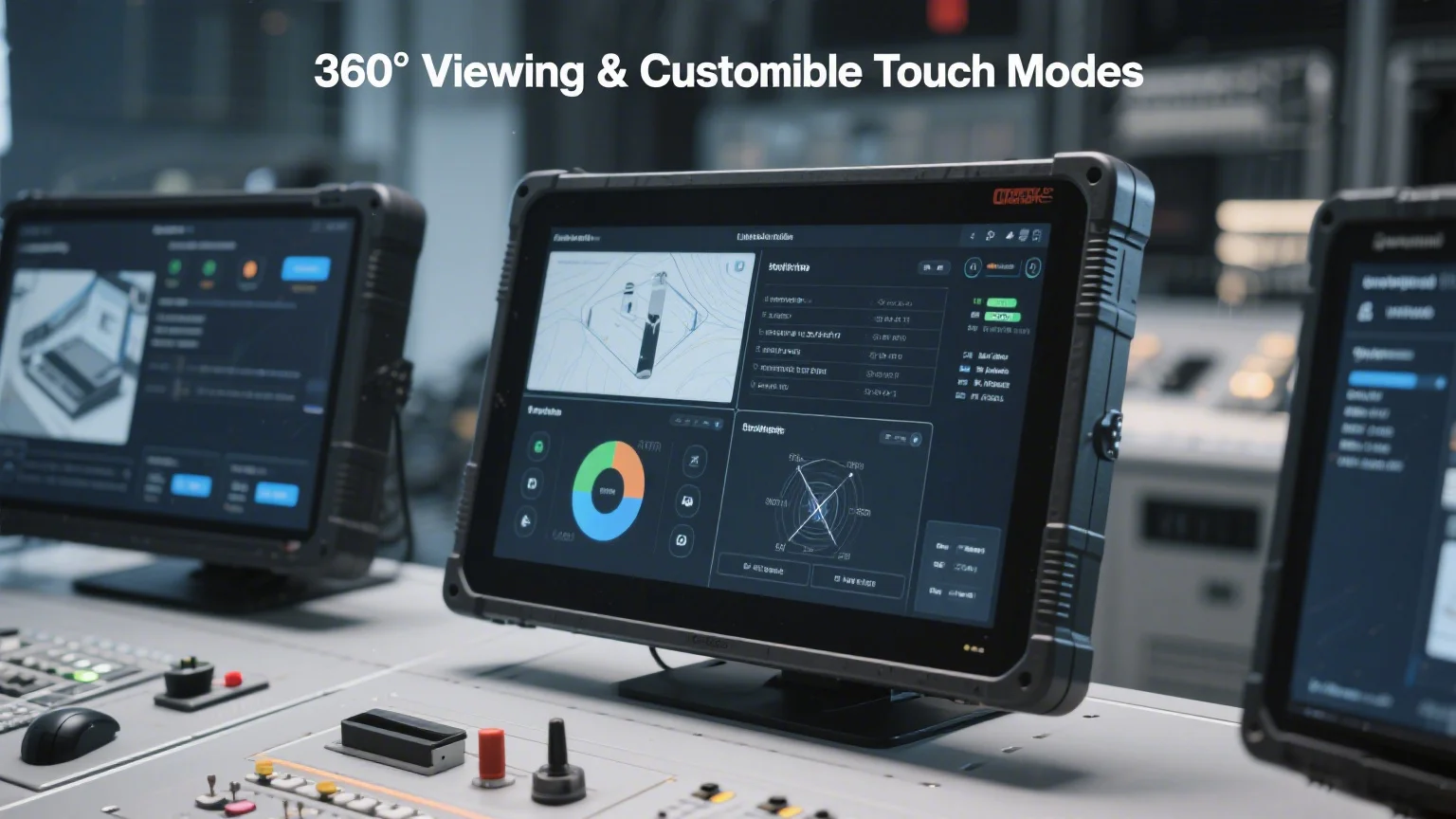
There are two main types of touchscreens in industrial monitors. These are resistive and capacitive. Each type works in its own way. Resistive touchscreens need pressure to work. Capacitive touchscreens sense changes when you touch the glass.
Here is a quick comparison:
| Feature | Resistive Touchscreen | Capacitive Touchscreen |
|---|---|---|
| Durability | Resists scratches and damage; works in harsh, dusty, wet, or gloved environments | Glass is scratch-resistant but sensitive to water and EMI |
| Responsiveness | Needs pressure; slower and less sensitive | Detects light touches quickly; supports multi-touch |
| Glove Compatibility | Works with any gloves or stylus | Needs special gloves or touch IC |
| Environmental Tolerance | High resistance to dust, liquids, and temperature | Moderate resistance; can be affected by water and EMI |
| Lifespan & Maintenance | May need more frequent replacement | Longer lifespan; lower maintenance |
Resistive screens last longer in tough places. Capacitive screens react faster and let you use more than one finger. You may need extra protection for capacitive screens in harsh places.
Glove & Stylus Use
Many jobs need you to wear gloves or use a stylus. Resistive touchscreens work with any glove or stylus. You can use a pen or other object too. Capacitive screens need bare fingers or special styluses. Some models work with special gloves, but most do not unless you adjust them.
- Resistive touchscreens:
- Work with gloves, styluses, or any object.
- Stay reliable in dusty, wet, or hot places.
- Capacitive touchscreens:
- Need bare fingers or special styluses.
- Support multi-touch and clear images.
- May lose performance in wet or dirty conditions.
If you must wear gloves at work, resistive screens help you do your job.
Wet & Dusty Conditions
Industrial sites often have water, dust, or chemicals. You need a touchscreen that keeps working in these places. High IP ratings like IP66 or IP67 protect your monitor from water and dust. Sealed enclosures stop moisture and dirt from getting inside. Thick glass and strong frames help the screen survive hits and scratches.
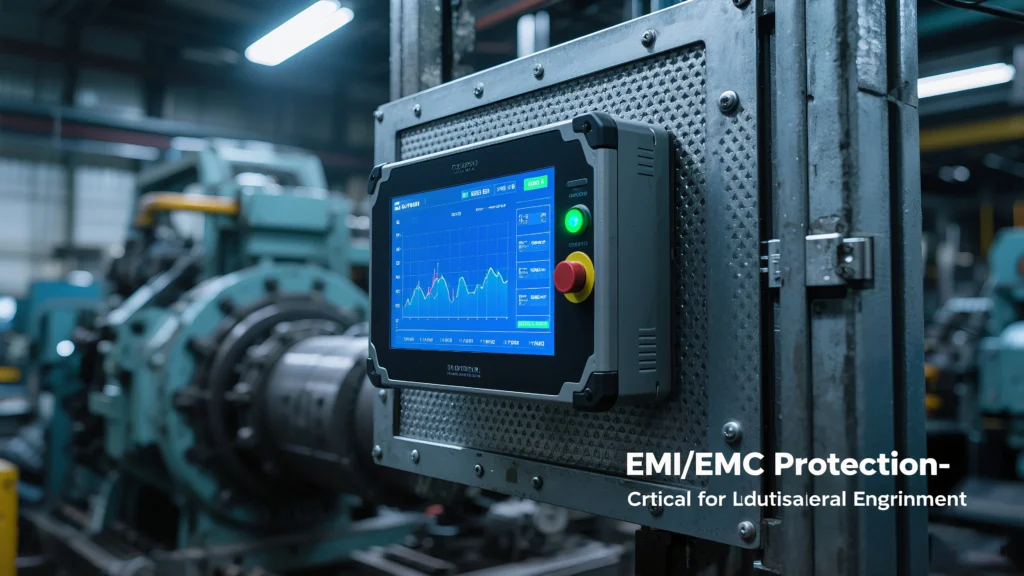
Touchscreen technologies like 5-wire resistive and ArmorTouch keep working even with oil, grease, or water on them. Some capacitive screens now work with gloves and wet hands, but check for these features before you buy. EMI protection helps your screen stay stable near big machines.
Tip: Always look for IP ratings and sealed enclosures if your workplace has water, dust, or chemicals. This keeps your monitor safe and working longer.
Display & Visibility
Brightness & Readability
You need a monitor that is easy to see everywhere. Brightness is very important if you work outside or near windows. Industrial touch screens use bright displays to help you see in sunlight. The brightness is measured in nits. This number tells you how well you can see the screen.
Here is a simple chart:
| Environment Condition | Recommended Brightness Level (nits) |
|---|---|
| Overcast Sky or Indirect Sunlight | About 750 nits |
| Direct Sunlight or Window Displays | 1000 nits or more, sometimes up to 2000 nits |
Monitors with 1000 nits or more often have special coatings. They also use optical bonding to help you see better in sunlight. These bright monitors last longer and work well outside.
Tip: Pick a monitor with at least 1000 nits for sunny or bright places. This helps you see the screen and keeps your eyes from getting tired.
Screen Size & Resolution
Screen size and resolution change how much you can see. Bigger screens show more information at once. High resolution makes words and pictures look sharp. In control rooms, high-resolution monitors help you spot problems fast.
You can watch many systems at the same time without hurting your eyes. Optical bonding and sunlight-readable screens make colors and contrast better. These features help you work longer without getting tired. Clear screens help you make fewer mistakes and keep your workplace safe.
High-resolution screens with good display technology help you work faster and safer.
Anti-Glare Features
Glare makes it hard to see your monitor. You need anti-glare features to keep your screen clear in bright places. Many industrial monitors use special coatings to stop glare.
- Anti-glare coatings lower reflections from lights and the sun.
- Anti-reflective coatings make the screen clearer and easier to see.
- Optical bonding removes air gaps and makes the screen stronger.
- High brightness displays help you see in strong light.
- Wide viewing angles let you see the screen from the side.
- Adaptive brightness sensors change the screen brightness for you.
These features help you see your monitor clearly, even in tough places. You can trust your screen to show clear images all the time.
Look for anti-glare and anti-reflective coatings if you work outside or in bright rooms. This helps you stay focused and make fewer mistakes.
Industrial Touch Screen Monitor Integration
Connectivity & Ports
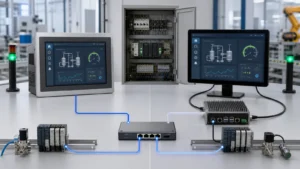
You need to make sure the ports fit your machines. Many factories use old machines, so serial ports are still needed. RS-232 is good for short cables. RS-422 and RS-485 work for longer cables and more devices. USB ports let you connect new tools like cameras and sensors. Some monitors have M12 USB and M12 LAN ports for strong links. You might see extra USB, LAN, or COM ports for special jobs. Most monitors also have video ports like VGA, DVI, HDMI, or DisplayPort. These choices help you connect to both old and new systems.
Tip: Always check what ports your machines use before buying a monitor. This helps you avoid problems later.
Mounting Options
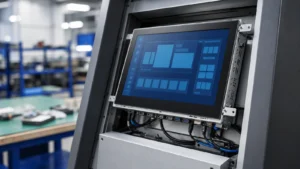
You can set up your monitor in different ways. VESA, panel, rack, and open frame mounts give you choices. Good mounting keeps your monitor steady, even if machines shake. Protective cases help stop damage from bumps. Easy mounting lets you reach the monitor with gloves or tools. Placing the monitor well helps you work better and stay safe.
| Mount Type | Stability | Accessibility | Best Use |
|---|---|---|---|
| VESA | High | Flexible | Walls, arms |
| Panel | Very High | Fixed | Control panels |
| Rack | High | Moderate | Server racks |
| Open Frame | Moderate | Customizable | Kiosks, machines |
System Compatibility
You need to make sure your monitor works with your system. Problems can happen if drivers or software do not match. You might have trouble with calibration, cables, or network settings. Testing before you start helps you avoid delays. Custom software needs to fit the monitor’s hardware and screen size. Some jobs need special things, like big icons or fanless designs. Custom features help you follow safety rules and work faster.
Note: Always test your monitor with your system before using it fully. This saves time and keeps your factory working well.
Maintenance & Cost
Cleaning & Hygiene
You need to keep your industrial touch screen monitor clean. This stops germs and keeps it from getting damaged. In food plants, you must follow strict cleaning rules. First, wipe off dirt and grease with a cloth or mop. Rinse the screen with warm water under 120°F. This helps stop things from sticking. Use soapy water to clean deeper. Sometimes, you need stronger soap or hot steam before sanitizing. Rinse off all the soap. Check the monitor, especially in corners and cracks. Use antimicrobial cleaners to kill germs. Let the monitor air dry or use steam to dry it faster.
Monitors with IP69K ratings and stainless steel housings are tough. They can handle strong water and chemicals. Flat bezels and waterproof connectors make cleaning easier. You should teach your team how to clean the monitors. Keep records of every cleaning. These steps help keep things clean and make your monitor last longer.
Tip: Clean your monitor often and use good design features. This stops bacteria and helps your monitor last.
Support & Warranty
When you buy an industrial touch screen monitor, check the support and warranty. Some brands, like Hope Industrial Systems, give a five-year warranty and fast repairs. They also let you return the monitor in the first month if you are not happy. Other companies may not say how long their warranty is. A longer warranty means you pay less for repairs. Fast support helps you fix problems quickly and keeps your work going.
| Manufacturer | Warranty Length | Repair Turnaround | Satisfaction Guarantee |
|---|---|---|---|
| Hope Industrial Systems | 5 years | 24-48 hours | 30 days |
| Maple Systems | Not specified | Not specified | Not specified |
| Eagle Touch | Not specified | Not specified | Not specified |
Note: Always look at warranty and support before you buy. Good support saves you time and money.
Total Cost
You need to think about more than just the price. The total cost includes setup, cleaning, power, and repairs. A strong monitor with certifications lasts longer and breaks less. Long warranties mean you pay less for repairs over five years. Good designs help your team stay healthy and miss less work. Energy-saving features lower your power bills and help the planet.
You also pay for setup, software, shipping, and taxes. Buying many monitors or software together can save money. Local service helps you fix problems fast, so you lose less time. Good care and strong cases keep your monitor working longer. Cleaning and updates help your monitor last and cost less.
Remember: The first price is only part of the cost. Pick a monitor that fits your needs and saves money over time.
When picking an industrial touch screen monitor, look for strong build, bright screen, and good sealing. Make a list to check things like how hot or cold it can get, if it keeps out water, and if it works with gloves.
| Key Feature | Why It Matters |
|---|---|
| Brightness | Easy to see in sunlight |
| Durability | Handles bumps and shaking |
| Water Resistance | Keeps out water and rain |
| Glove Compatibility | Works well when wearing gloves |
Match each feature to what your job needs. Do not forget to check for sealing or if you can use different ways to touch the screen. Ask experts or the company for help with your special job.
FAQ
What does an IP rating mean for a touch screen monitor?
IP rating shows how well your monitor keeps out dust and water. Higher numbers mean better protection. For example, IP65 blocks dust and water spray. IP69K handles strong water jets and steam.
Tip: Always check the IP rating before you buy.
Can you use an industrial touch screen monitor with gloves?
Yes, you can use resistive touch screens with any gloves. Some capacitive screens need special gloves. Always check the monitor’s specs for glove support.
| Touch Type | Glove Use |
|---|---|
| Resistive | Any gloves |
| Capacitive | Special gloves |
How do you clean a rugged touch screen monitor?
Use a soft cloth and mild soap. Rinse with warm water. Avoid strong chemicals unless the monitor has a high IP rating. Dry with a clean towel.
Note: Clean your monitor often to keep it working well.
What size screen should you choose for your workspace?
Pick a screen size that fits your space and shows all needed information. Large screens help in control rooms. Small screens work well for tight spots.
- Large: More details, easier viewing
- Small: Saves space, easy to mount
Do rugged monitors cost more than regular ones?
Rugged monitors usually cost more at first. You save money over time because they last longer and need fewer repairs.
Remember: A strong monitor helps you avoid downtime and extra costs.