.png)
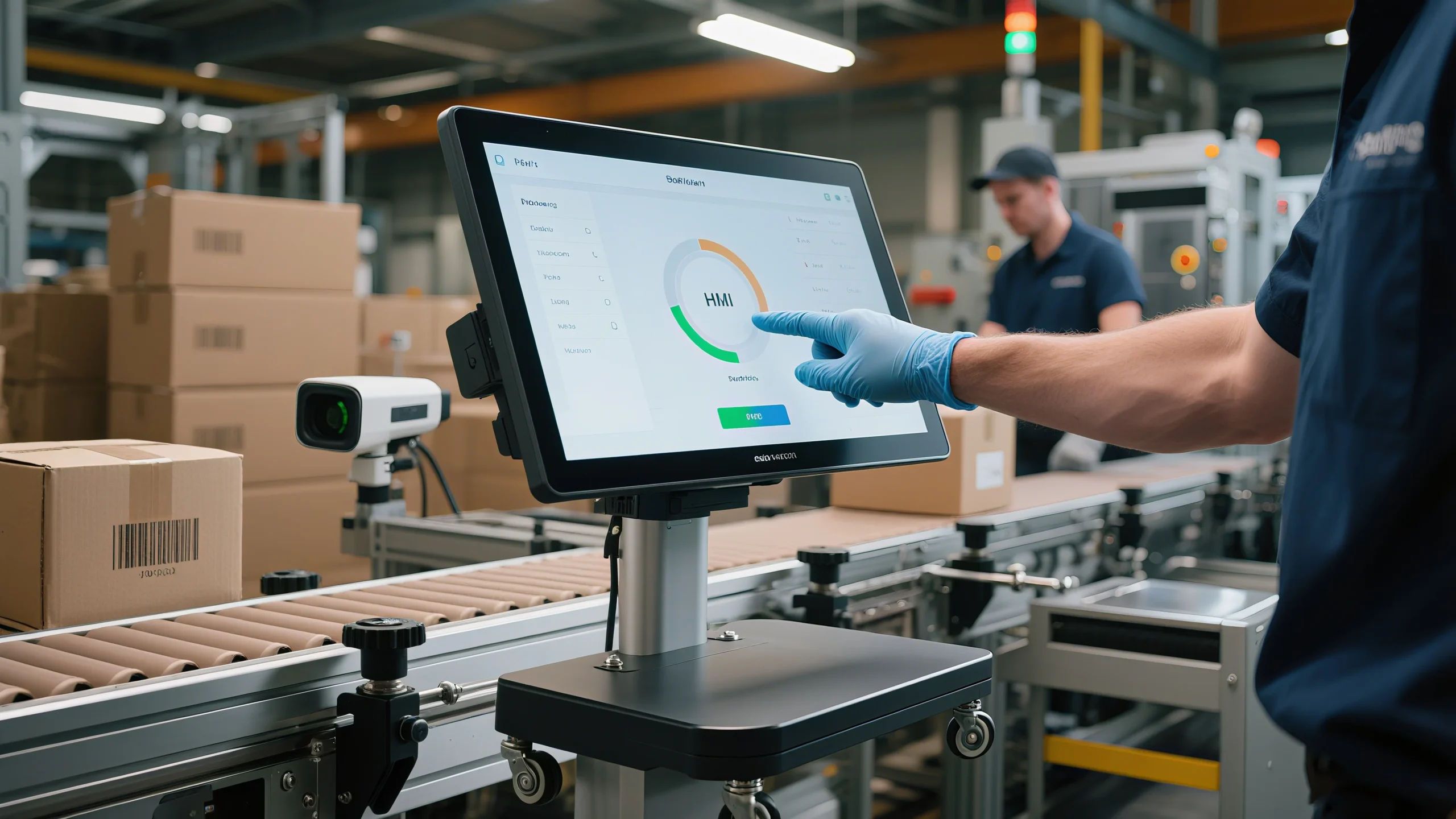
A good installation of an industrial touch display helps your factory work well. Safety is very important, so you should follow all rules to keep workers and machines safe. You must make sure the display works with your systems to stop problems later. Good planning and careful work help the display run well.
Tip: Always read the instruction manual before you start. This step can stop many problems and save time.
Key Takeaways
- Always get your workspace ready. Follow safety rules. Wear protective gear. Use the right tools. This helps keep everyone safe.
- Pick the best mounting style. Choose the right hardware. Make sure your touch display is secure. Think about what your factory needs. Look at the environment too.
- Use rugged displays. Use good cables. These protect against dust and water. They also help with heat and electrical problems in the factory.
- Connect cables with care. Install official drivers. Calibrate the touchscreen often. This helps it work well and stay accurate.
- Clean your display often. Take care of it. Check for damage. Update the software. Train workers to use it. This keeps the system working for a long time.
Preparation
Workspace Setup
Begin by reading the instruction manual for your display. This helps you know what to do and stops mistakes. Safety is very important in a factory. Make sure everyone has finished safety training. Wear safety shoes, glasses, gloves, and masks. Keep your workspace neat and clean. Wipe up spills and move things away from paths. Use the right tools and check if they work. Look out for dangers like wet floors, wires, and things that can catch fire.
Tip: Always turn off equipment before you start. Put “Out of Service” tags on machines to keep people safe.
Do these safety steps before you begin:
- Finish safety training for all workers.
- Put on protective gear.
- Clean work and storage areas.
- Use tools that work well.
- Watch for wet floors and open wires.
- Put up warning signs and barriers if needed.
- Keep waste in closed bins.
- Make sure air moves well in the area.
Component Check
Once your workspace is ready, check all the display parts. Lay out the display, cables, brackets, and screws. Look for broken or missing items. Match each part to the list in the manual. Pick the right mounting hardware for your needs. VESA mounts are good for flexible setups. Panel mounts fit into walls or machines. Open-frame mounts work for custom cases. Choose hardware that keeps your display safe and steady.
Note: Check all electrical wires before using them. Fix open wires right away to stop accidents.
Mounting the Industrial Touch Display
Mounting Options
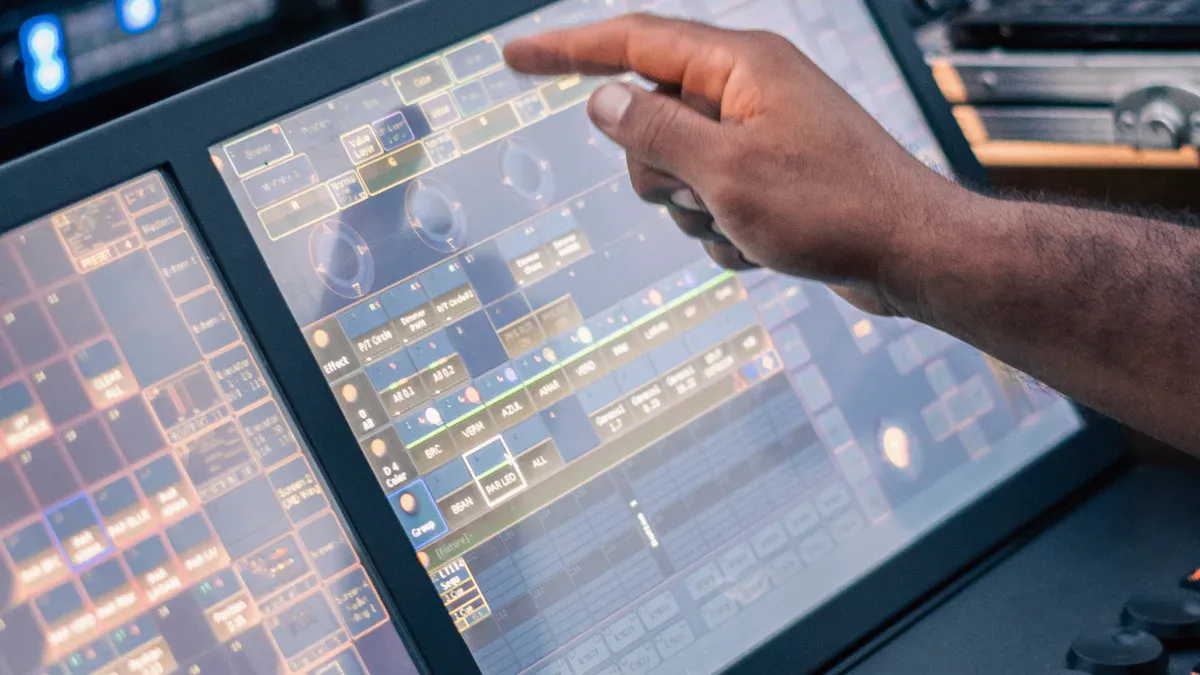
You can pick from different ways to mount an industrial touch display in your factory. Each way works best for certain jobs and places. Most displays come as panel mount, open frame, or VESA mount. These types let you put the display in walls, machines, or special kiosks. You can also use flush mount or bezel mount styles.
- Flush Mount: You put the display inside a surface. This makes it look neat and easy to use. You must install it with care because fixing it is harder.
- Bezel Mount: You add a frame around the display. This keeps the edges safe and makes it easier to set up. The frame can change how the display looks.
- Panel Mount: You place the display in a wall or machine. This helps stop people from stealing or messing with it.
- Open Frame Mount: You use brackets to hold the display. This works well for custom cases and saves space.
- VESA Mount: You use standard holes to attach the display. This lets you move or change the display easily.
Tip: Pick a mounting style that fits your factory’s needs. Think about how workers will use the display and how easy it is to reach.
Here is a table to help you see the main mounting types:
| Mounting Type | Security Impact | Flexibility Impact |
|---|---|---|
| Panel Mount | Very secure, hard to remove, protects against tampering | Less flexible, fixed in place |
| VESA Mount | Less secure, easy to remove | Very flexible, easy to adjust or move |
| Open Frame Mount | Stable and durable, balances security and flexibility | Highly customizable, fits custom spaces |
Secure Installation
Think about the factory environment before you install an industrial touch display. Factories can have dust, water, shaking, and changing temperatures. These things can hurt your display if you do not get ready.
- Very hot or cold air can break parts inside.
- Wet air can cause water to build up inside the display.
- Dust and dirt can block the touch screen or damage the inside.
- Water and chemicals need displays with strong water resistance, like IP65-rated monitors.
- Shaking and bumps can crack or shake the display.
- Electromagnetic interference can make the touch screen act strangely.
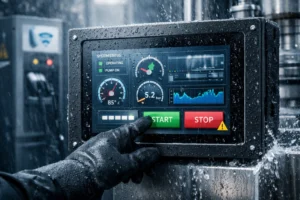
To keep your display safe, use ruggedized models. These displays have tough cases and sealed cable entries. Some models use stainless steel cases and have IP66 or IP69K ratings. These ratings mean the display can handle strong cleaning and harsh chemicals. Sealed cable entries keep water and dust out. Some displays use Gorilla Glass so you can use gloves. Others have heaters inside to stop water drops in cold places.
Note: Always use the mounting hardware the manufacturer suggests. This keeps your display steady and safe. In hard places, add covers or enclosures for extra protection.
Pick a spot for your display that is easy to see and away from heat, water, and dust. Make sure the power supply is steady and has surge protection. Clean and check your display often to keep it working well.
Connection
Cable Setup
You must connect your industrial touch display carefully. Good cable management helps your display work well. It also stops accidents from happening. Pick cables that fit your factory’s needs. Hot air, water, and chemicals can harm normal cables. Use cables with special coatings to protect them from rust. For wet or outdoor places, use cables made for those areas, like THWN or UF-B.
Flexible cables like Flexible Printed Circuits (FPC) or Flat Flexible Cables (FFC) are good for tight spots. These cables bend easily and do not break when twisted. Insulation Displacement Connectors (IDC) let you join wires fast without soldering. Shielded cables block electromagnetic interference. This stops touch problems. Cables with flame-retardant and UV-resistant covers are safer.
Tip: Keep cables tidy and do not let them tangle. Never put too much power through cables. Too much power can make them hot or start a fire.
Here are some good ways to set up cables:
- Pick cables with the right rating for your area.
- Only use adapters and extenders from trusted brands.
- Do not use couplers or wall plates with built-in couplers. Use longer cables or approved extenders instead.
- Do not crowd cables together. This makes fixing them easier and stops damage.
- Check cables for damage before you connect them. Replace any cables that look worn or broken.
- Make sure all connections are tight. Loose cables can make screens flicker or not work.
- Use surge protectors to keep your display safe from power spikes.
You need to ground your display too. Connect copper wires from the display to the ground. Make sure grounding wires are tight. Test the grounding system to see if it works. If you use metal cases, bond the LCD frame and bezel edges tightly. For plastic cases, use shielded flat cables and make insulation gaps bigger. Add filtering capacitors and small resistors to signal lines to stop static electricity.
Here is a table that shows connector choices for factories:
| Connector Series | Key Features | Reliability Factors | Typical Applications |
|---|---|---|---|
| DL28, LP12, LP20, DH16 | Waterproof, corrosion-resistant, vibration-resistant | Flame-retardant, UV-resistant, quick connect/disconnect | Automation, energy storage, LED screens |
| LM12 Cable Assemblies | Stable connections | Reliable under harsh conditions | Factory automation, communication |
| Accessories | Protective sleeves, dust caps | Protect against dust, moisture, damage | Industrial environments |
Driver Installation
After you finish setting up cables, install the right drivers. Drivers help your industrial touch display talk to your computer or control system. If you use the wrong driver, your display may not work right.
Get the newest drivers from the manufacturer’s website. Follow the steps in the instructions. Restart your system after you install drivers. If your display does not work, check these common problems:
| Issue Type | Symptoms | Causes | Solutions |
|---|---|---|---|
| Driver Recognition | Display not recognized | Outdated OS, missing drivers | Update OS and drivers; reset firmware if needed |
| Performance Issues | Touch delay, no multi-touch | Driver conflicts, corrupt firmware | Reinstall drivers; reset firmware; check compatibility |
| Resistive Touch Screens | Calibration errors, unresponsive | Outdated controller drivers | Install updated drivers; restart system |
| Calibration Problems | Inaccurate touch input | Poor calibration, driver conflicts | Use calibration tools; install manufacturer’s drivers; check settings |
If cables are loose or broken, you may see flickering or weird images. Always check connections first. If problems do not go away, update or reinstall drivers. Match your display settings to the screen resolution. Restart your device to fix small software problems.
Note: Always use drivers from the official website. Do not use random drivers from the internet. This keeps your display safe and working well.
Calibration and Testing
Touch Calibration
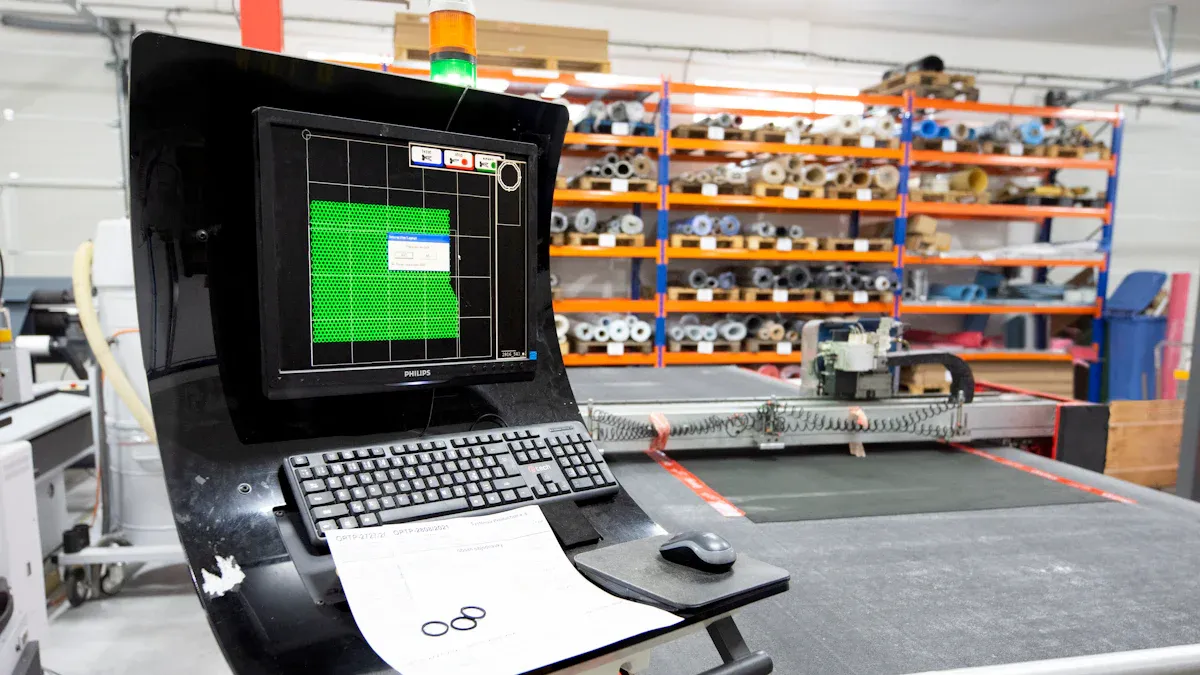
You need to calibrate your industrial touch display so it works right. Put the monitor where workers can see and reach it. Connect all cables, like power, video, and USB for touch. Turn on the display and open the calibration software. The system will ask you to touch spots on the screen in order. This helps the display know where you touch. Save your settings when you finish. Change brightness, contrast, and touch sensitivity for your factory. If workers wear gloves, set calibration for gloves. Calibrate every three months or when you see problems. Advanced tools like LabVIEW can help with better accuracy. If you see ghost touches or the screen does not work, clean the surface, update drivers, and calibrate again.
Tip: Protect your display from electromagnetic interference. This keeps touch response working well.
Function Testing
After calibration, test your display to make sure it works. Check these key performance indicators:
| Key Performance Indicator | Description |
|---|---|
| Tap Accuracy and Repeatability | Does the display register taps in the same spot every time? |
| Swipe Accuracy | Can you swipe smoothly without missing or jittery lines? |
| Jitter (Stationary Touch) | Does a held touch stay steady or jump around? |
| Reporting Rate | How often does the display send touch data? |
| First Contact Latency | How quickly does the display react when you touch it? |
| Hover Distance | Can the display sense your finger before you touch the screen? |
| Finger Separation Capability | Does the display tell apart two fingers close together? |
Test each function by tapping, swiping, and holding your finger on the screen. Make sure the display responds fast and correctly.
Troubleshooting
If your industrial touch display does not work, try these steps:
- Calibrate the touchscreen using the device’s instructions.
- Clean the screen to remove dirt and grease.
- Take off gloves if you use a capacitive screen.
- Change sensitivity settings for better response.
- Update or reinstall drivers.
- Restore your system if new software caused problems.
- Check all hardware connections for damage.
- Contact the manufacturer if problems do not stop.
Common problems are ghost touches, slow response, and screens that do not work. Dust, old firmware, and loose cables often cause these issues. Keep your display clean, calibrate often, and update software to stop trouble. Use surge protection and avoid very hot or wet places.
🛠️ Cleaning and installing your display the right way helps it last longer.
Maintenance
Cleaning
You should clean your touch display often to keep it working. Always turn off the device before you start cleaning. Use a soft microfiber cloth or special wipes for screens. Wipe off dust and water drops every day. If you see fingerprints or oil, use a little glass cleaner or alcohol on the cloth. Make sure the screen is dry before turning it back on. Do not use strong chemicals or rough things. These can scratch or harm the screen. For tough stains, mix mild soap with water and wipe gently in circles. Use light pressure when cleaning or using the touchscreen. Do not press hard or use sharp things. Keep your fingers clean and dry. Take off gloves if you can, or use a stylus made for touchscreens. Never put heavy things on the screen. Put the display away from heat, water, or places where it could get hit. Cleaning your screen often helps it stay sensitive and work well.
Tip: Open the device cover slowly if you need to clean inside. Never use rough things on the inside or on shiny stripes.
Routine Checks
Check your display often to make sure it works in the factory. Look at seals and covers to see if they are worn or broken. Change any bad parts right away. Use strong cases and make sure the device is grounded to stop static. Clean with special cleaners to get rid of dirt and grease. Calibrate the touchscreen and update software when new versions come out. Always look for firmware updates from the maker and install them fast. Use maintenance software to track cleaning, checks, and repairs. Put barcode labels on your devices to help with records. Take pictures before and after fixing to show what changed. Use checklists to make sure you do every job. Plan audits to keep your records up to date. Teach workers to report problems and help with checks. Doing these things helps stop problems and keeps your industrial touch display working for a long time.
| Documentation Method | Description |
|---|---|
| Barcode Labels | Tag assets for easy tracking and less human error |
| Maintenance Software | Record details, technician timesheets, and resource assignments |
| Photographic Documentation | Show equipment condition before and after maintenance |
| Checklists | Ensure tasks are completed and documented |
| Operator Training | Teach workers to report issues and join maintenance tasks |
To put an industrial touch display in your factory, do these things: First, get your tools and pick a spot that is safe and easy to see. Next, attach the display tightly and plug in all the cables. Turn on the display and set up the touchscreen so it works right. Change the settings to fit your job. Make sure to clean and look at the display often.
Cleaning the display, checking cables, and updating software often will help your industrial touch display work well for a long time.
FAQ
How often should you calibrate an industrial touch display?
You should calibrate your display every three months. If you notice touch problems or after software updates, calibrate again. Regular calibration keeps your screen accurate and easy to use.
What should you do if the touch screen stops responding?
First, check all cables and power. Clean the screen with a soft cloth. Restart the device. If it still does not work, update the drivers or contact the manufacturer for help.
Can you use any cleaning product on the touch display?
No, you should not use strong chemicals or rough materials. Use a soft microfiber cloth and a small amount of screen-safe cleaner. Always turn off the display before cleaning.
What is the best way to protect the display from factory hazards?
Pick a rugged display with a high IP rating. Use sealed cable entries and strong mounting hardware. Place the display away from water, dust, and heat. Check seals and covers often.