How Do Touch Screens Work? The Science Behind Your Daily Taps
A touch screen turns a physical interaction into digital coordinates. In other words, it detects where you touch and how you move. However, industrial and outdoor projects add real constraints—gloves, water film, EMI noise, sealing, and sunlight. Therefore, this guide explains the core science and the engineering checks that prevent field failures.
Fast answer
Sensors → controller → coordinates → software action
Most common mainstream type
Capacitive (PCAP) touch
Industrial failure driver
Water/EMI/grounding/mounting stress
- Quick answer: how touch becomes a tap
- The three building blocks: sensor, controller, software
- Main touch technologies (when each makes sense)
- How capacitive touch works (self vs mutual capacitance)
- Industrial design notes (gloves, water, EMI, sealing, sunlight)
- Selection checklist for OEM/ODM projects
- Common symptoms and fast troubleshooting
- FAQ
- Recommended next steps
1) Quick answer: how touch becomes a tap
First, the sensor detects a change caused by your finger, glove, stylus, or pressure. Next, a controller calculates the position and sends coordinates to the host device. Finally, the operating system or application interprets the gesture and triggers an action. Therefore, touch can feel instant even though multiple layers are involved.
2) The three building blocks: sensor, controller, software
Touch sensor (the surface layer)
- Detects the signal change caused by touch
- Can be capacitive, resistive, infrared, acoustic, or optical
- Must match environment needs (gloves, water, dust)
Touch controller (the translator)
- Converts analog changes into digital coordinates
- Applies filtering for noise, water, and false touches
- Reports touch events through USB/I²C/SPI (depends on product)
Software & firmware (the rules)
- Maps coordinates to gestures (tap, swipe, pinch)
- Defines debounce, palm rejection, and water rejection behavior
- Controls calibration and long-term stability
In industrial projects, firmware tuning often matters as much as hardware.
Display stack (what users see)
- LCD + backlight defines brightness and readability
- Cover glass and coatings control glare and cleaning
- Bonding options improve contrast and reduce fogging risk
For outdoor readability design, see: sunlight readable touch displays.
3) Main touch technologies (when each makes sense)
Touch screens are not all the same. Instead, each technology is a trade-off. Therefore, selection should start from environment and input method.
| Technology | How it detects touch | Where it fits best |
|---|---|---|
| Capacitive (PCAP) | Measures changes in an electric field | Multi-touch UI, high clarity, modern HMIs and kiosks |
| Resistive | Pressure connects two layers at the touch point | Glove/stylus input in cost-sensitive, simple interfaces |
| Infrared | Light beam grid is interrupted by a finger/object | Large screens, public terminals, when touch layer wear must be low |
| SAW (Acoustic) | Ultrasonic waves change when touched | Certain kiosk and semi-controlled environments |
| Optical imaging | Cameras/sensors detect touch shadows | Large displays and interactive boards |
4) How capacitive touch works (self vs mutual capacitance)
Capacitive touch screens use a transparent conductive layer to form an electrical field. When a conductive object approaches, the field changes. Then the controller calculates where that change happened. Therefore, touch can be accurate and responsive.
Self-capacitance (simple detection)
Self-capacitance measures changes at individual electrodes. It can be sensitive, but it may be less stable for multi-touch in some designs. As a result, many modern systems prefer mutual capacitance for gesture-heavy interfaces.
Mutual capacitance (common in PCAP)
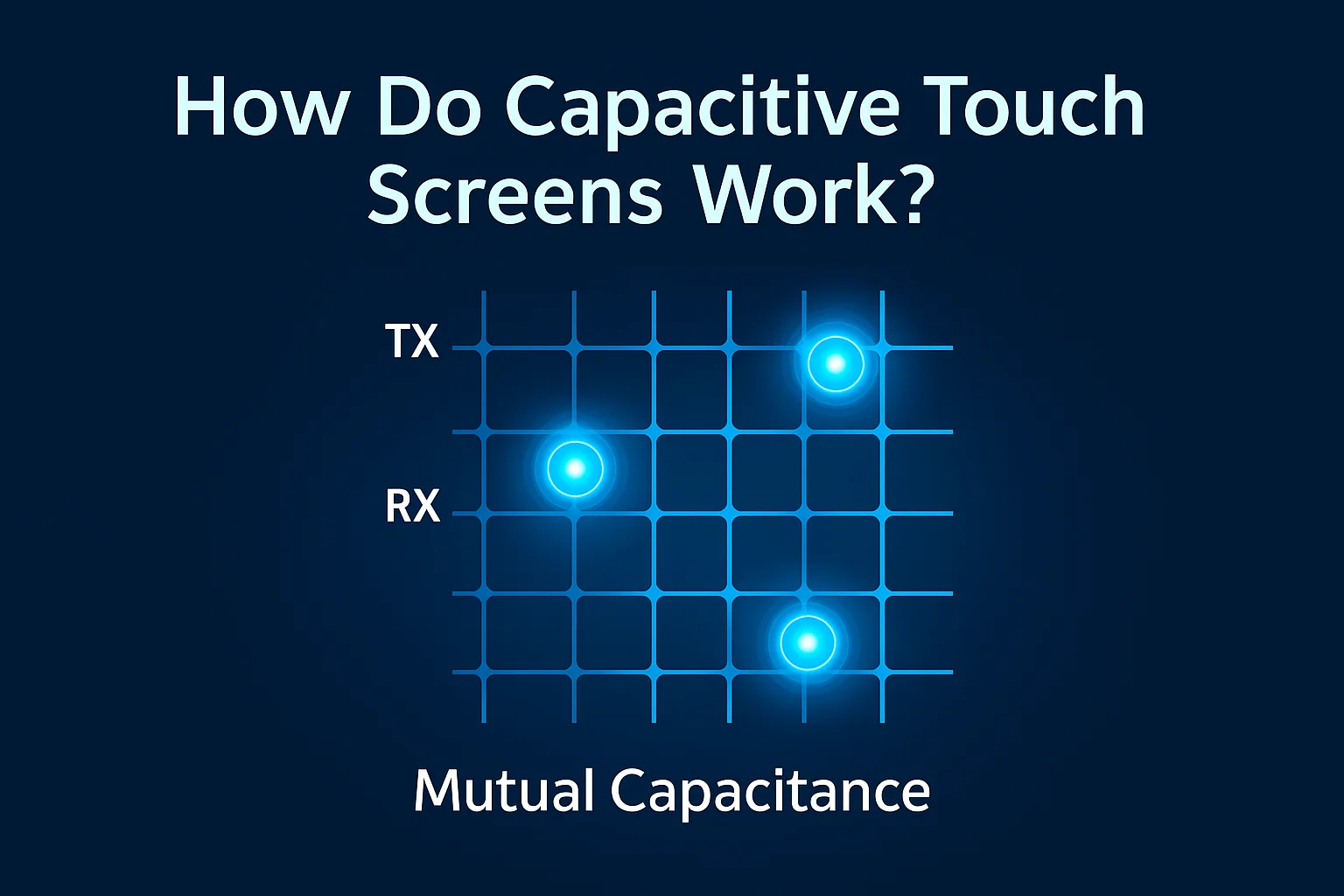
Mutual capacitance uses a grid of transmit (TX) and receive (RX) electrodes. When you touch the surface, the coupling between TX and RX changes. Then the controller scans the grid and locates the touch point. Therefore, multi-touch gestures can be tracked reliably.
5) Industrial design notes (the part that prevents field failures)
A touch screen that works on a bench can still fail in the field. However, most failures follow the same patterns. Therefore, use the notes below as a validation checklist.
Glove and wet touch
- Define glove type and thickness early
- Validate touch targets (button size and spacing)
- Use controller tuning and filtering for water film
For wet environments, start with sealing: waterproof touch screens.
EMI noise and grounding
- Switching power supplies and motors can trigger ghost touches
- Grounding, cable routing, and shielding often fix the root cause
- Always re-test after enclosure assembly
If you need a QA workflow, use: touchscreen test checklist.
Sealing and IP rating
- IP targets must match cleaning method and exposure
- Connectors and cable exits are common leak points
- Use consistent gasket compression across the bezel
Reference: IP rating overview (external): IP code (IEC 60529)
Outdoor readability
- Brightness alone is not enough under direct sun
- Anti-glare and bonding improve contrast and reduce reflections
- Condensation risk changes with stack-up and temperature swings
Integration stability
- USB disconnects often trace back to power quality or connectors
- Mounting stress can change edge performance
- Version-control firmware and driver settings for sign-off
For a practical tester workflow, read: touchscreen tester guide.
Safety and compliance (project-dependent)
- Confirm EMC expectations for your market
- Define operator safety and lockout behavior for critical functions
- Document validation tests for audits and approvals
External reference (example, agriculture): ISO 25119 overview
6) Selection checklist for OEM/ODM projects
If you are choosing a touch solution for kiosks, HMI, or outdoor terminals, start with the checklist below. It keeps discussions focused. In addition, it speeds up quoting.
| Category | What to define | Why it matters |
|---|---|---|
| Environment | Temperature range, water exposure, dust, chemicals | Drives sealing, glass, coatings, and reliability |
| Input | Glove type, wet touch, stylus, multi-touch points | Determines PCAP tuning and UI sizing |
| Readability | Target brightness, glare control, viewing angle | Prevents “visible in lab, unusable in sun” issues |
| Sealing | Front IP target, washdown method, connector type | Most failures come from edges and cable entry |
| Integration | I/O (HDMI/DP/VGA), USB touch, mounting method | Stability and maintainability in the enclosure |
| Lifecycle | Supply timeline, revision control, spare strategy | Protects long-term production and service |
Send screen size, target IP, glove/wet touch requirement, and your enclosure drawing. Then we will propose a touch stack-up and configuration.
7) Common symptoms and fast troubleshooting
Ghost touch / random taps
- Separate signal cables from power cables
- Improve grounding and reduce loop area
- Re-test near real EMI sources
Edge dead zones after assembly
- Check bezel pressure and mounting flatness
- Look for mechanical stress points
- Re-run edge tests after bracket adjustment
Touch disconnects (USB)
- Check power ripple and connector seating
- Use a known-good cable and secure routing
- Log disconnect timing and operating conditions
Bad outdoor usability
- Confirm brightness in real sun, not only indoors
- Reduce reflections with AG/AR and bonding options
- Validate wet touch behavior and UI target size
FAQ
How do touch screens detect your finger?
They detect a physical change at the surface. Capacitive screens measure changes in an electric field, while resistive screens detect pressure that connects layers.
Why don’t regular gloves work on many capacitive screens?
Capacitive touch needs a conductive input to change the field. However, thick or non-conductive gloves can block that change unless the system is tuned or uses special glove materials.
Capacitive vs resistive: which is better for industrial use?
It depends on environment and UI needs. PCAP is strong for clarity and multi-touch, while resistive can be easier for thick gloves or simple input in certain harsh conditions.
Can capacitive touch work with water on the surface?
Yes, but it must be validated. Water film can cause false touches, so projects often require filtering, tuning, and proper sealing with the right IP design.
What information helps you recommend the right solution fast?
Share size, brightness target, front IP rating, glove/wet touch requirements, EMI sources, and your mounting/enclosure details.
Recommended next steps
Kiosks, EV chargers, and signage configurations.
Sealing basics and practical design notes.
Brightness, glare control, and bonding.
Start from application requirements, then match products.
Share your drawing and environment. We will recommend a stable touch stack-up for your project.