Deployment Validation Checklist
Touchscreen Test Checklist for Industrial Touch Monitors Before Deployment
A touchscreen test checklist should prove that the display works in the real machine, not only on a clean office desk. Before an industrial touch monitor is deployed, validate visual performance, touch accuracy, grounding, cable route, power recovery, environmental exposure and field service access. This checklist is designed for OEM engineers, QA teams and system integrators preparing pilot or production approval.

Quick Checklist Summary
| Stage | What to Test | Pass Criteria |
|---|---|---|
| Incoming inspection | Part number, label, glass, connector and visible defect. | Matches drawing and no shipping damage. |
| Display performance | Brightness, color, viewing angle, dead pixels and uniformity. | Meets project standard and customer UI is readable. |
| Touch performance | Accuracy, edge response, multi-touch, glove and wet touch if needed. | No missed touches, ghost touches or unstable coordinates. |
| System integration | Host boot, driver recognition, cable length, power cycling. | Display and touch recover without manual reset. |
| Environment | Temperature, humidity, vibration, cleaning, sunlight or IP exposure. | Passes the defined application condition. |
| Serviceability | Removal, replacement, cable access and gasket condition. | Can be serviced without damaging the cabinet. |
1. Define Scope and Acceptance Criteria
Before testing, write down the application and pass/fail rules. A factory HMI, outdoor kiosk, food processing panel and railway terminal do not need the same acceptance criteria. If the display will be touched with gloves, tested in rain or installed near motors, include those conditions in the test plan.
- Application: machine HMI, kiosk, vehicle, medical, food, outdoor or control cabinet.
- Operating environment: indoor, outdoor, washdown, sunlight, vibration, chemical or wide temperature.
- Touch conditions: bare finger, glove, wet finger, stylus or multi-user input.
- Host system: operating system, driver, power input, video interface and cable length.
2. Visual and Optical Inspection
| Check Item | Method | Common Failure |
|---|---|---|
| Glass and surface | Inspect under angled light. | Scratch, chip, coating mark or dust under glass. |
| LCD uniformity | Show white, black, gray, red, green and blue screens. | Mura, bright spot, dark spot, line defect or backlight leak. |
| Readability | View real UI at expected distance and angle. | Text too small, low contrast or glare. |
| Brightness control | Test full brightness and dim mode. | Flicker, poor night readability or overheating. |
3. Touch Performance Test
Touch testing should include the real edge area, not only the center of the screen. Many integration issues appear near gasket edges, thick cover glass, long cables or noisy equipment.
| Touch Test | How to Run | Pass Criteria |
|---|---|---|
| Single touch accuracy | Tap a grid across the whole active area. | Coordinate follows finger without jump or offset. |
| Edge response | Tap UI buttons near all edges and corners. | No dead edge or repeated false trigger. |
| Multi-touch | Use tester software or customer UI gestures. | All required points are tracked stably. |
| Glove touch | Use the actual glove from the application. | No missed critical commands. |
| Wet touch | Apply droplets and water film, then run real UI. | No ghost touch, stuck state or unsafe operation. |
4. Integration and Environmental Tests
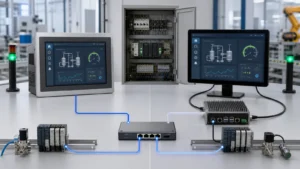
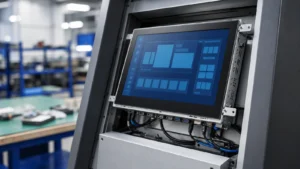
After bench tests, install the monitor into the real enclosure or a close mechanical mockup. Check cable strain, grounding, gasket compression and connector access. Then run power cycling, standby recovery, vibration or cleaning tests based on the application.
| Test Area | What to Record |
|---|---|
| Power cycle | Number of cycles, boot time, display recovery and touch driver recovery. |
| Cable length | Video stability, USB touch recognition and noise behavior at final cable length. |
| Temperature | Cold start, high-temperature touch stability and backlight derating. |
| Cleaning or water | Cleaner used, exposure method, touch response and visual surface change. |
Sample Test Record Template
A repeatable record helps engineers compare samples, pilot units and mass-production batches. Keep the test form short enough that it will actually be used, but specific enough to support failure analysis later.
| Record Field | What to Enter |
|---|---|
| Unit information | Model, serial number, LCD size, controller version and firmware. |
| Host information | Operating system, video input, touch interface, cable length and power supply. |
| Mechanical state | Bench test, installed in cabinet, gasket compressed or final enclosure. |
| Touch result | Grid test, edge test, multi-touch, glove touch, wet touch and recovery. |
| Display result | Brightness, uniformity, dead pixel result, viewing angle and glare check. |
| Disposition | Pass, conditional pass, retune required, mechanical change required or reject. |
Acceptance Levels by Project Risk
Not every project needs the same test depth. A factory test station in a controlled room can use a lighter checklist than an outdoor payment kiosk, food washdown panel or railway HMI. Set the acceptance level before testing starts.
| Risk Level | Typical Application | Extra Tests to Add |
|---|---|---|
| Standard | Indoor HMI, test bench, light industrial equipment. | Visual, touch grid, power cycle and cable check. |
| Rugged | Factory floor, gloves, vibration or long operation hours. | Glove touch, vibration review, burn-in and grounding check. |
| Outdoor or wet | Kiosk, car wash, food equipment, EV charger or marine terminal. | Wet touch, sunlight readability, sealing, cleaning and thermal check. |
| Regulated or lifecycle critical | Medical, railway, public infrastructure or safety-related equipment. | Revision control, documented QA record, EMC/vibration standards and service plan. |
Related Guides
FAQ
What should be tested before deploying an industrial touch monitor?
Test visual quality, touch accuracy, edge response, glove or wet touch if needed, host compatibility, power cycling, cable length, environmental exposure and service access.
Is a desktop touchscreen tester enough?
No. Tester software is useful, but final validation should also use the real UI, host system, cable length, enclosure and application environment.
When should wet touch or glove touch be tested?
Test wet touch or glove touch whenever the display is used outdoors, in washdown areas, by operators with gloves, or in public terminals exposed to rain and cleaning.
Quality / Validation / Testing: engineering decision summary
Quick answer
A useful validation plan ties each check to an agreed project requirement, sample/configuration, method and acceptance result. Incoming inspection, bench testing and system-level retesting answer different questions and should remain traceable.
Inputs to confirm
- Identify model, sample, configuration and approved requirement
- Record method, equipment or fixture, conditions and result
- Retest critical behavior after enclosure, grounding or display integration
Evidence boundary
A checklist describes a validation workflow; it is not evidence that every product passed every listed test. Ask for the records applicable to the quoted project.
Related engineering guides
- Why Etching-Paste Patterning Matters in Touch Sensor Manufacturing
- The Advantages And Applications Of Thermal Tempered Glass
Project next step: Review the relevant product or solution scope, the validation evidence boundary, and then send the project inputs for engineering review.