.png)
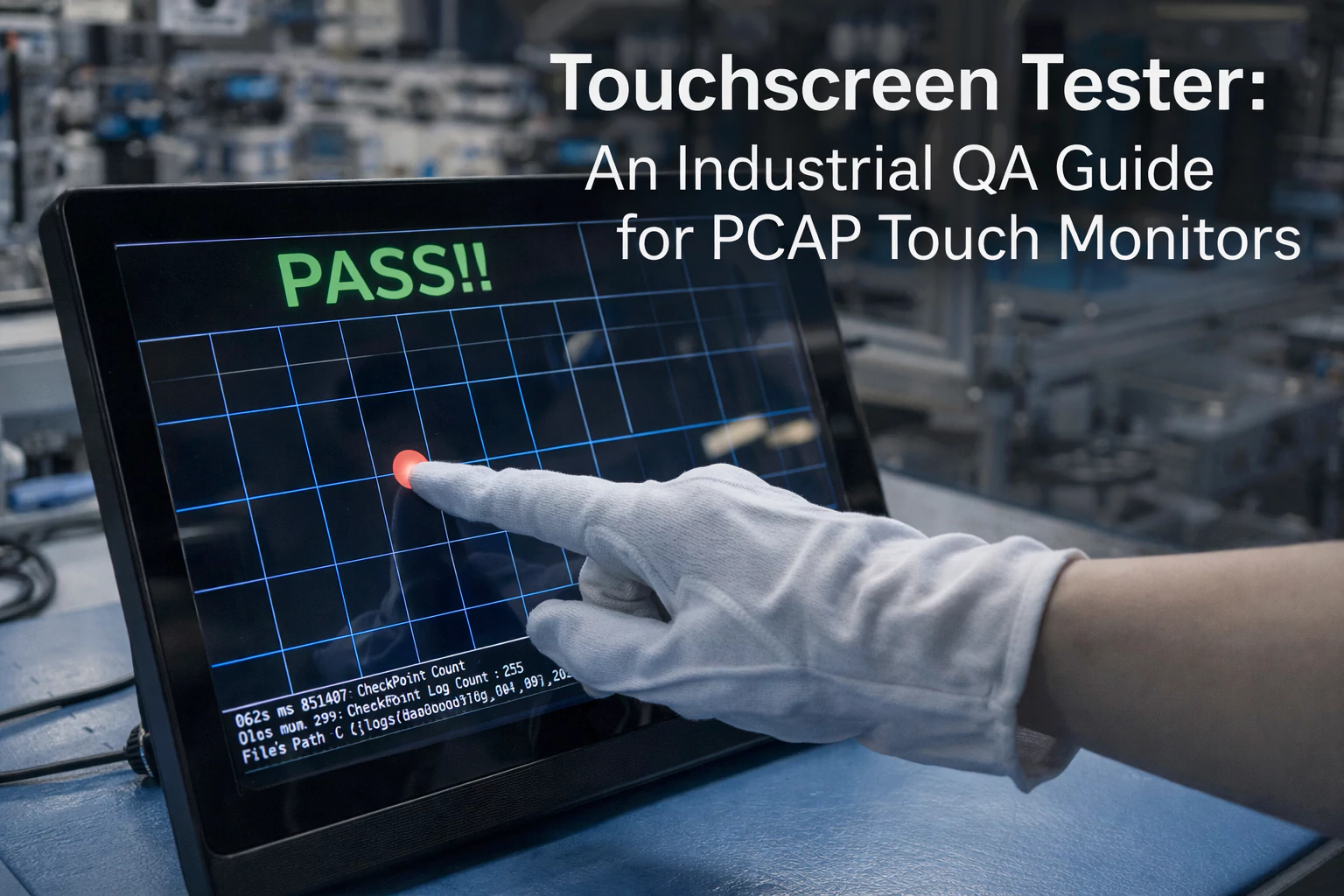
Touchscreen Tester: An Industrial QA Guide for PCAP Touch Monitors
A “touchscreen tester” is not one single app. Instead, it is a repeatable QA workflow that proves a PCAP touch monitor works in real environments. In this guide, you’ll get practical test steps, clear pass/fail criteria, and troubleshooting actions that reduce field failures.
Primary goal
Prevent ghost touch and random disconnects
Best practice
Test before and after enclosure mounting
Common root cause
Power noise, grounding, and cable routing
- Stability first: check power and USB touch disconnect behavior.
- Core touch: validate accuracy, edges, and multi-touch stability.
- Real conditions: test gloves/wet touch and EMI risk near noise sources.
- Integration: repeat the same tests after enclosure mounting.
1) What does “touchscreen tester” mean?
In consumer devices, a “tester” often means a simple touch app. However, industrial QA is broader. A touchscreen tester is a repeatable process that checks touch behavior, display readability, and system stability. As a result, you catch issues before deployment.
- Touch performance: accuracy, edges, multi-touch stability, response consistency
- Environment fit: gloves, water film, sunlight, temperature, vibration
- Noise immunity: EMI sources, grounding, cable routing, power ripple
- Integration stability: USB enumeration, firmware behavior, mounting stress
2) Tools you actually need (minimal but effective)
You do not need a lab to start. Instead, build a small kit that matches your real deployment. Then expand only when your risk level is higher.
Software tools
- Touch test app (multi-touch points, line tracking, edge sweeps)
- USB event logging (detect disconnects and reconnect loops)
- Firmware/driver version notes (for consistent sign-off)
Simple hardware kit
- Known-good USB cable and power adapter
- Ground check point (and short ground strap if needed)
- Real gloves used on-site, plus light mist spray bottle
- Light source for glare and readability checks
3) A practical QA workflow for PCAP touch monitors
This workflow is designed for field stability. First, confirm a clean baseline. Next, simulate real conditions. Finally, repeat after mounting. Therefore, you avoid the “works on bench, fails in cabinet” surprise.
Step 1 — Incoming inspection
- Inspect cover glass, edges, and connector seating
- Confirm no warp and no visible stress points
- Verify interface set: video + USB touch + power
Step 2 — Power and USB stability
- Boot 20 cycles and record abnormal behavior
- Soak test 2 hours and watch for random resets
- Check for USB touch disconnects and reconnect loops
Step 3 — Touch accuracy and edges
- Draw slow lines across the full panel (no breaks)
- Sweep corners and edges near the bezel
- Repeat after 30-minute warm-up
Step 4 — Multi-touch stability
- Test 2–10 touch points (as required)
- Repeat pinch/zoom/rotate gestures
- Confirm no drift, no stuck touch, and no jump
Step 5 — Gloves and wet touch simulation
- Test the exact glove types used in the project
- Apply light mist and check false touch risk
- Validate real UI button size and spacing
Need sealing and wet-use guidance? See waterproof touch screens.
Step 6 — EMI risk check (field method)
- Test near motors, inverters, chargers, or switching PSUs
- Look for ghost touches, coordinate drift, or random freezes
- Then fix grounding/routing and repeat the same tests
For outdoor readability setups, see sunlight readable touch displays.
Step 7 — Integration re-test after mounting
- Repeat edge tests after enclosure assembly
- Confirm mounting does not add mechanical stress
- Re-check USB stability and noise sensitivity
Step 8 — Final usability verification (real UI)
- Test the actual interface layout and workflow
- Confirm response consistency with real operators
- Record firmware version and any tuning settings
4) Acceptance criteria (fast table)
| Test area | Pass criteria | What it prevents |
|---|---|---|
| Touch accuracy | No jumpy points; repeatable clicks; stable lines | Mis-taps and complaints |
| Edges & corners | Consistent response near bezel; no dead zones | Failures after mounting |
| Multi-touch | No drift; no stuck touch; stable 2–10 points (as required) | Gesture errors |
| Glove / wet touch | Usable with real gloves; limited false touch under mist | Outdoor usability issues |
| EMI robustness | No ghost touch near noise sources after routing/ground fixes | Random events in cabinets |
| USB stability | No disconnects; no reconnect loop during soak test | Intermittent touch loss |
5) What to record for approval
Good records speed up decisions. In addition, they reduce repeated testing. Therefore, keep one QA sheet that includes the items below.
- Controller + firmware version, plus any tuning settings
- Test environment: temperature, EMI sources, glove type, wet method
- Photos/videos for edge sweeps and wet tests
- Cable routing photo and grounding point description
- Final status:
PASS / PASS with notes / FAIL
6) Troubleshooting: common failures and fast actions
Ghost touch
- Improve grounding and reduce noisy loops
- Separate signal/USB from power cables
- Re-test near EMI sources after routing changes
Edge inaccuracy
- Check bezel pressure and mounting flatness
- Loosen and re-align brackets, then re-test
- Confirm enclosure does not create stress points
Random USB disconnect
- Check power quality and ripple
- Use known-good cable and secure connectors
- Review logs to find the exact disconnect pattern
Outdoor usability complaints
- Validate brightness and glare control in real sun
- Choose AG/AR and bonding options per requirement
- Re-check wet-touch behavior and button sizing
FAQ
Is a touchscreen tester only software?
No. In industrial QA, a touchscreen tester is a workflow that includes software checks, mechanical checks, and environment checks.
How long should a basic touchscreen test take?
A quick screening can take 10–15 minutes. However, a full validation can take longer, depending on environment and risk level.
When should I run glove and wet touch tests?
Run them whenever your deployment uses gloves or faces water film. Otherwise, keep tuning stable and simple.
Why do touch issues appear after mounting?
Because enclosure stress and grounding changes can shift the touch baseline. Therefore, always re-test after integration.
What information helps the supplier diagnose problems faster?
Provide firmware version, a short video of the issue, your cable routing photo, and a description of EMI sources near the screen.