Concept illustration of a sheltered parking payment touchscreen terminal with EV charging facilities in the background
Application concept illustration

XW02 Series High-Brightness
Touchscreen Monitors

Select a 10.1–21.5-inch touch monitor for your kiosk, charging interface or self-service equipment. Compare five models by native resolution, brightness configuration and operating temperature.

HDMI / VGA video. USB capacitive touch. An external host powers your application.

10.1–21.5″Five screen sizes
300–1000cd/m² · brightness configuration range
HDMI + VGAVideo inputs · USB touch
100 × 100mm · VESA mounting pattern
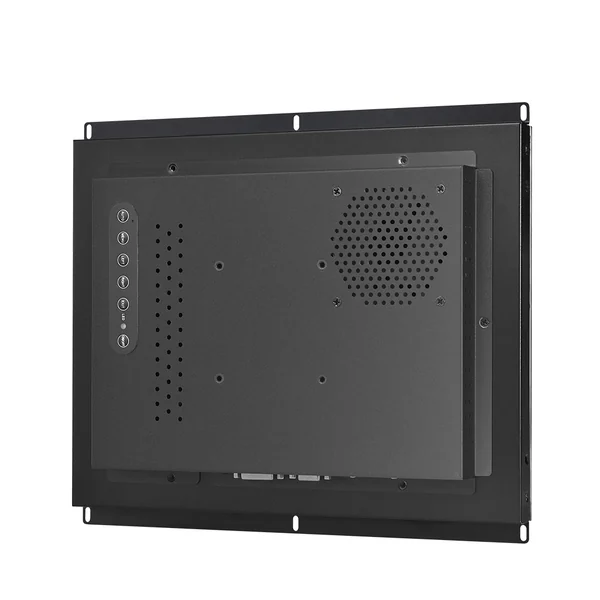
Actual XW02 series rear-view product reference
THE DISPLAY INSIDE YOUR TERMINAL

XW02 series. Configured around your equipment.

Compare the monitor specifications below, then review the brightness, power and installation drawing for your project.

Product image: series reference view. Final layout varies by size and configuration.
Explore five models
01 / FIND YOUR CONFIGURATION

Five sizes. One clear comparison.

Compare native resolution and operating temperature alongside the space available in your enclosure. Use the model identifier when requesting specifications, drawings and a quotation.

Swipe the table to compare all specifications →

XW02 TC V1 model specifications
SizeResolutionBrightness rangeOperatingStorageModel / inquiry
10.1″1280 × 80016:10300–1000 cd/m²-20 to 70°C-30 to 80°CSelect ↗YL-HZXW02Q101TC-V1
13.3″1920 × 108016:9300–1000 cd/m²-20 to 70°C-20 to 70°CSelect ↗YL-HZXW02Q133TC-V1
15.6″1920 × 108016:9300–1000 cd/m²-30 to 80°C-30 to 85°CSelect ↗YL-HZXW02Q156TC-V1
18.5″1920 × 108016:9300–1000 cd/m²-20 to 70°C-20 to 70°CSelect ↗YL-HZXW02Q185TC-V1
21.5″1920 × 108016:9300–1000 cd/m²0 to 50°C-20 to 60°CSelect ↗YL-HZXW02Q215TC-V1

Brightness values describe configuration choices, not a fixed output on every unit or an adjustable dimming range. Confirm the quoted brightness and power budget for the selected model. Assess the temperature at the monitor inside the installed enclosure.

Video: HDMI + VGATouch: capacitive / USBPower: 12 V DCVESA: 100 × 100 mm
02 / BEYOND THE FACTORY FLOOR

Build around the task your terminal performs.

Use these applications to shortlist screen sizes. Match the enclosure, host and operating conditions before selecting a configuration.

Shortlist by the space and task.

These are layout starting points. Confirm the installation against the selected model, enclosure and operating conditions.

Screen sizeLayout starting pointConfirm before selection
10.1 inchCompact payment or control interfaceTouch-target size, reader placement and cabinet opening.
13.3 inchCheck-in or charging-equipment interfaceVisible screen area, cable space and user reach.
15.6 inchMulti-step self-service and terminal interfacesWorkflow layout, front-window reflections and installed temperature.
18.5 inchParking payment or information interfaceViewing distance, service route and enclosure heat.
21.5 inchRetail selection or larger information layoutThe monitor operating range is 0 to 50 °C; confirm the temperature inside the cabinet.
01 / APPLICATION

Kiosks and Self-Service Terminals

For ordering, check-in, payment and information interfaces, compare screen size with viewing distance, touch-target size and cabinet space. Review the display together with printers, readers and service access.

Start with 10.1, 13.3 or 15.6 inches for compact layouts; compare larger sizes when the interface needs more space.Explore self-service integration
02 / APPLICATION

EV Charging Interfaces

Review XW02 as a display component within your charging equipment. Define the front window, sunlight exposure, internal heat and 12 V DC supply, then check touch operation with the charger’s power electronics running.

Compare 10.1, 13.3 and 15.6 inches against your display opening and charging interface layout.Review outdoor terminal requirements
03 / APPLICATION

Parking, Payment and Ticketing Equipment

Plan the display around payment readers, ticket printers and the enclosure’s maintenance route. Review day and night visibility, condensation, front sealing and the temperatures expected at the installed monitor.

Compare 10.1–18.5-inch models by cabinet fit, user reach and the information shown on screen.Read the parking HMI design guide
04 / APPLICATION

Bright Retail and Vending Environments

For product selection, self-checkout and customer information, balance screen area with reflections, cleaning access and cabinet heat. Include nearby motors, compressors and payment equipment in the integration review.

Compare 13.3, 15.6, 18.5 and 21.5 inches. The 21.5-inch model has a 0 to 50 °C operating range.Explore kiosk display options
03 / OUTDOOR INTEGRATION

Specify the display and enclosure together.

For outdoor-facing terminals, assess the monitor with the front window, enclosure and power system. A canopy changes sunlight and rain exposure; sealing, condensation and thermal design still need their own checks.

Define the protection at system level. An IP rating is not specified for the XW02 models shown here. The enclosure, front window and installation must address the project’s exposure conditions.

  1. Readability through the finished window

    State the viewing angle, direct-sun exposure, screen content and cover-glass arrangement. Review reflections through the finished window, select a brightness configuration, then assess readability through the complete optical stack. Brightness alone does not establish direct-sun performance.

  2. Heat and cooling at the installed monitor

    Account for solar load, backlight power, other equipment and airflow inside the enclosure. Review the cooling arrangement and check the temperature at the monitor against the selected model’s operating range.

  3. A defined protection boundary

    Specify which surfaces face rain, dust or cleaning fluids. Review the front window, gasket, mounting interface and cable entries together. Request configuration-specific evidence for any required ingress or impact rating.

  4. Touch operation under project conditions

    Describe glove use, droplets, water film and cleaning conditions in the inquiry. Agree touch checks with the selected controller, host and grounding. Check operation with nearby power electronics running, and define any required EMC/EMI evaluation for the complete equipment.

  5. Power for the chosen brightness

    Review the supply capacity, cable routing and start-up conditions for the quoted configuration. Confirm its power budget with the display operating at the requested brightness; the range alone does not establish consumption.

  6. Access for installation and service

    Use the released drawing to review fasteners, connector reach, cable bends and replacement access. Keep these checks separate from VESA hole spacing before finalizing the cabinet.

04 / CONNECT AND INSTALL

Define every connection and clearance.

A display for your external host. Define the signal path, power budget and mechanical fit before committing to the enclosure.

Video and touch

Connect HDMI or VGA for video and USB for touch input. Share the host operating system and display timing, then check touch behavior with the intended application.

Power

The model specifications list 12 V DC input. Confirm the power budget, connector arrangement and cable routing for the quoted brightness configuration.

Mounting

All five model specifications list VESA 100 × 100 mm. Request the current model-specific installation drawing to check overall dimensions, screw engagement, connector clearance and service access.

Use the released drawing for your exact model. VESA hole spacing alone does not define the enclosure opening, fasteners or installation clearances.

Request an Installation Drawing

From requirements to a quoted configuration.

  1. 01

    Define the requirements

    Share the model or size, brightness target, host, installation environment, quantities and schedule.

  2. 02

    Review the integration

    Review the drawing, interfaces, power and thermal conditions. Identify the configuration details that still need agreement.

  3. 03

    Agree sample checks

    Define the brightness, installed-temperature and touch checks for the proposed sample and equipment setup.

  4. 04

    Confirm the quotation scope

    Record the model revision, agreed configuration, documents and supply terms before a production commitment.

05 / DOCUMENTS AND EVIDENCE

From model selection to a defined sample.

Include the drawing revision, sample checks, inspection records and delivery identification in your request. Ask which test conditions and records apply to the quoted model and configuration.

Model selection guide

Compare all five XW02 TC models in one English reference. Review display, interface, electrical and temperature data before requesting the drawing for your configuration.

Download English PDFSource: TC V1 · Compilation: EN1 / Nov 2026

Quality and testing

Review test capabilities and evidence scopes. Identify the conditions, sample configuration and acceptance records that your project needs.

Explore Quality & Testing

Production traceability

Connect drawing release, inspection and shipment identification. Agree the records required for the sample and production order.

Explore Production Records

21.5-inch model reference
YL-HZXW02Q215TC-V1 · English edition, 09 Sep 2026

View Individual Datasheet
Request a Model DrawingAvailable after drawing confirmation
06 / SELECTION QUESTIONS

Before you specify XW02.

Does XW02 include an application computer?

The XW02 TC models shown here are touchscreen monitors for an external host. HDMI or VGA carries video, USB carries touch input, and the monitor uses a separate 12 V DC supply. Share your host and operating system so the connections and touch behavior can be reviewed together.

Does every XW02 monitor provide 1000 cd/m²?

The model specifications list a 300–1000 cd/m² configuration range. Confirm the brightness supplied with the exact quoted model, its measurement conditions and power requirements. For sunlight-facing installations, assess readability with the intended cover window, reflections and thermal conditions.

Can XW02 be specified for an outdoor kiosk or EV charger?

It can be evaluated as a display component for that project. An IP rating is not specified for the five models shown here. Define sunlight, moisture, impact, temperature and touch-use requirements, then review the display with the complete enclosure and request the applicable test evidence.

Do all five models have the same operating temperature range?

No. The 10.1-, 13.3- and 18.5-inch specifications list −20 to 70 °C. The 15.6-inch model lists −30 to 80 °C, while the 21.5-inch model lists 0 to 50 °C. Select against the temperature expected at the installed monitor, including heat from sunlight and equipment inside the cabinet.

What drawing is needed for mounting and enclosure design?

Request the current installation drawing for the exact model and configuration. The listed VESA pattern is 100 × 100 mm; overall dimensions, any enclosure opening, screw engagement and cable clearances need to be checked against that drawing before tooling or installation.

What should I include in an XW02 quotation request?

Provide the preferred model or screen size, application, sample and production quantities, host video interface and operating system. Include your installation drawing, sunlight exposure, expected temperatures, protection and touch requirements, and target delivery schedule. These details help define the configuration and sample checks.

07 / YOUR NEXT EQUIPMENT DESIGN

Request a configuration for your equipment.

Choose a model or describe the screen size your design needs. Share the installation conditions so EverGlory can review the display, interfaces and mechanical fit with you.

  • Model, brightness and interface selection
  • Installation drawing and enclosure fit
  • Sample checks and documentation
  • Quantity, schedule and supply terms
Scroll to Top

Dongguan Ever Glory Photoelectric Co., Ltd.

— Looking for Custom Touch Solutions? —

Contact Us for Free Design Consultations!