You can make touch screen computers in a few easy ways. Use devices like AirBar for fast results. Try touch overlays that go on your screen to make touch screen functionality. You can also use an external touch screen monitor, which gives you good performance. Some software can pretend to be touch, but hardware works better. Pick the way that fits your needs and device. Each choice has its own good points and setup steps.
Key Takeaways
- You can use AirBar, touch overlays, or external touch monitors to add touch screen features. Choose the one that fits your needs and budget.
- Look at your computer’s USB ports, screen type, and operating system before you buy touch screen hardware. This helps make sure it will work with your computer.
- Follow easy steps to install the touch screen. Calibrate it often to keep it working well.
- Clean your touch screen and update drivers often. This helps stop problems like ghost touches or devices not being found.
- Always follow safety rules when you install touch devices. This keeps you and your computer safe.
Ways to Make Touch Screen
External Devices
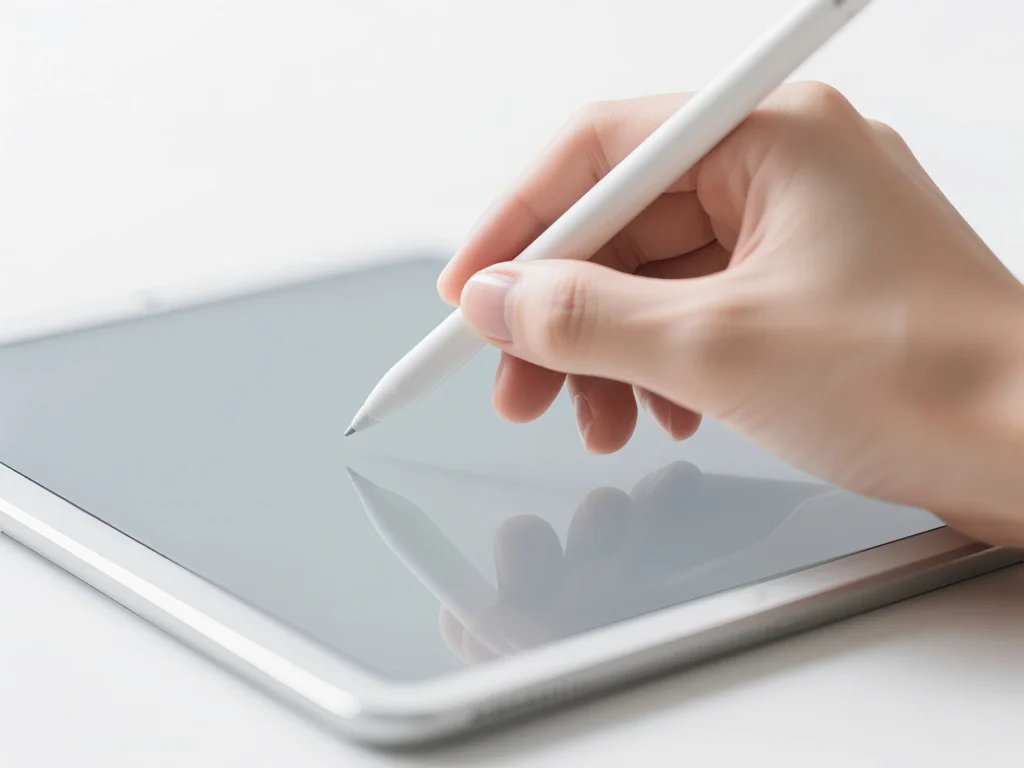
You can use external devices to add touch screen features. AirBar is a popular choice. It sticks to the bottom of your laptop screen with magnets. You plug it into a USB port. The AirBar makes a light field over your screen. You can tap, swipe, or pinch on your screen. AirBar will sense your movements. This works for many laptops. You do not need to open your laptop or change your screen.
Devices like AirBar are simple to set up. Just attach the bar and plug it in. Most computers do not need extra drivers. This makes it a quick way to get touch screen functions on a laptop. But AirBar and similar devices do not work with every laptop. You should check if your laptop is supported before you buy.
Tip: AirBar works best with Windows laptops. Some features may not work on MacBooks or other systems.
Touch Overlays
Touch overlays are another way to add touch screen features. These are thin layers that go over your monitor. They are touch-sensitive. You can find overlays with different technologies. Some use capacitive, resistive, or infrared.
- Touch overlays are cheap and easy to put on.
- They let you tap and swipe on your screen.
- Overlays may not be as precise as built-in touch screens.
- Some overlays can make the screen less clear or slower to respond.
Here is a table that compares overlay types:
| Touch Technology | Impact on Touch Sensitivity | Impact on Display Quality | Additional Notes |
|---|---|---|---|
| Capacitive | High sensitivity and precise, supports multi-touch | Gives a clear and sharp display | Costs more, sensitive to metal, can scratch |
| Resistive | Lower sensitivity, single-touch only | Makes the screen less clear | Cheap, strong, works with gloves, can wear out |
| Infrared | High touch accuracy with IR beams | Can be affected by bright light | Accurate, reliable, has bezel or no frame |
Touch overlays let you add touch screen features to many monitors. But you might see a small drop in screen quality or touch accuracy.
External Monitors
You can also use an external touch screen monitor. These monitors have touch sensors built in. They work like a tablet or a touch laptop. Just connect the monitor with HDMI or USB. Your computer will see it as a new screen.
External touch screen monitors have many good points:
- They are very sensitive and accurate.
- Many are tough and good for outdoor use.
- Some have bright screens and anti-glare, so you can use them in sunlight.
- You can pick from many sizes and features, like USB or water resistance.
Touch monitors make it easy to use your computer. You do not need a mouse or keyboard for lots of things. This can help you save space and keep your desk neat. These monitors can cost more at first. But they last a long time and are easy to use.
Note: External touch screen monitors work with Windows and Mac. Always check what your computer needs before you buy.
Software Solutions
Some software can help you use touch screen actions. This works even if your computer does not have a real touch screen. These programs let you control the mouse with gestures or keys. Here is a table of popular software:
| Software | Platform Support | Description and Use Case |
|---|---|---|
| PyAutoGUI | Windows, Linux, macOS | Controls mouse and keyboard; simulates clicks and moves; best for one monitor. |
| Pywinauto | Windows | Automates Windows apps; works with buttons and menus. |
| Robot Framework + AutoIt | Windows | Automates Windows app actions for testing. |
| Puppeteer | Cross-platform (Chromium) | Automates web browsers; used for web tests and screenshots. |
Software solutions are cheap and easy to use. But they do not feel like real touch hardware. They are good for testing or simple jobs. They do not give the same experience as a real touch screen.
Remember: Software touch works best for testing or automation. For the best experience, hardware is still the best choice.
Compatibility and Setup
Device Requirements
Check your computer’s hardware before you start. Most external devices and overlays use a USB port. One USB port is enough for power and connection. You do not need another power supply. These devices work best with LCD or LED LCD displays. Plasma screens are not a good choice. You can use overlays with or without glass. Glass helps keep your display safe.
Here is a table that lists the main hardware needs:
| Hardware Requirement | Details |
|---|---|
| USB Connection | One USB port powers and connects the overlay; no extra power needed. |
| Display Compatibility | Works with LCD or LED LCD displays; Plasma screens are not suggested. |
| Operating System Support | Works with Windows, Mac, and Linux; plug-and-play, drivers are optional. |
| Touch Technology | Infrared touch frame goes around the display, finds touch by blocking light beams. |
| Glass Requirement | Glass is not needed but helps protect the display. |
Tip: Always check your monitor type and USB ports before you buy a touch overlay or device.
Operating System Support
Most external touch screen devices and overlays work with Windows, Mac OS, Linux, and Android. These systems use the HID standard to find touch devices. You do not need extra drivers for basic use. Windows 7, 8, 10, and 11 let you use touch screens right away. Mac OS and Linux also support touch screens. You might need to download drivers for multitouch. Linux has built-in drivers, but vendor drivers help with setup and more features.
- Windows: Plug-and-play for touch screens and overlays.
- Mac OS: Needs drivers for multitouch.
- Linux: Built-in drivers for basic touch; vendor drivers help more.
- Android: Supports overlays, but overlays can only capture all touch events or let them pass through.
Note: For advanced features like gesture control, install the manufacturer’s drivers or software.
Installation Steps
Follow these steps to put a touch overlay on your monitor:
- Get your touch device, a hole puncher, and a clear screen protector.
- Empty the hole puncher so you do not lose the small circles.
- Use the hole puncher to make small circles from the screen protector.
- Clean your monitor screen. Take off any mask from the overlay.
- Put the overlay on your screen. Press gently to remove air bubbles.
- Stick the punched circles over each virtual button for better feel.
- Test the touch overlay to see if it works.
If you use an external device like AirBar, just attach it to your screen and plug it into a USB port. Your computer should find it right away.
😊 You can get touch screen features working in minutes if you follow these steps and check your device first.
Troubleshooting
Common Issues
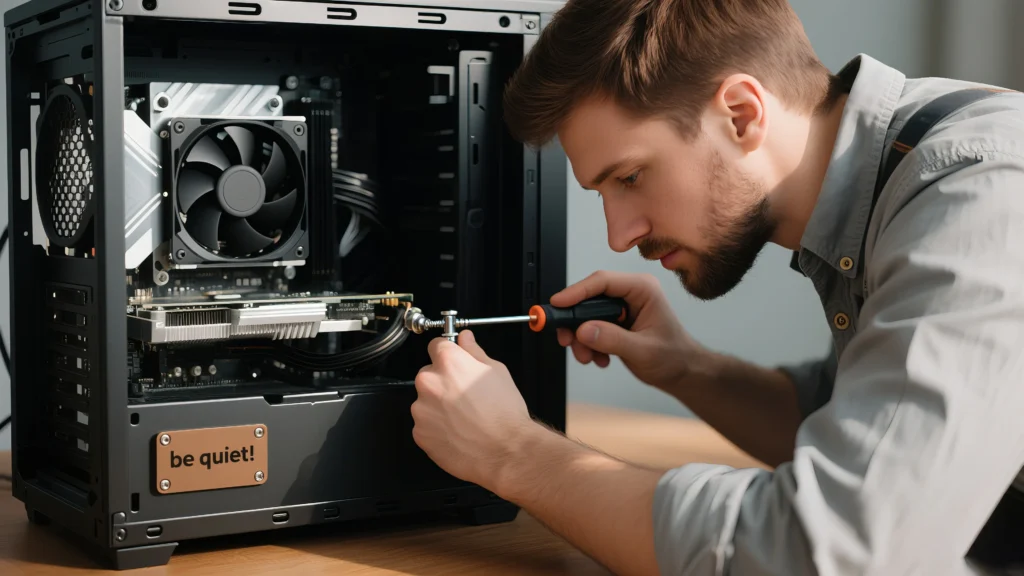
You might have some problems when making your computer a touch screen. Sometimes, the computer does not see the touch device. This can happen if the USB cable is not plugged in tight or if drivers are missing. The touch might not match where your finger is. This means you need to calibrate the screen. If you see random taps or ghost touches, the sensitivity may be too high or there could be electrical noise.
Here is a table with common problems and how to fix them:
| Issue | Description | Typical Solution |
|---|---|---|
| Touchscreen Not Recognized | System does not detect touch input | Check USB connection and install correct drivers |
| Calibration Issues | Touch does not match finger location | Calibrate using system tools or device software |
| Driver Problems | Touch stops working after updates | Update or reinstall vendor-specific drivers |
| Ghost Touches | Screen reacts to touches you did not make | Lower sensitivity, clean screen, check for electrical noise |
| Physical Damage | Scratches or cracks affect touch | Use a screen protector and handle with care |
Tip: If your touch screen acts strange after a Windows update, try updating or rolling back the driver in Device Manager.
Performance Tips
You can keep your touch screen working well with a few steps. Always calibrate the screen when you set it up. This helps the touch match your finger. Do this again every few months or if you notice problems. Clean your screen often to get rid of dust and fingerprints. Use a soft, dry cloth for cleaning.
To get better accuracy and speed, keep your drivers updated. Some touch screens let you change the sensitivity. Set it so the screen only reacts to your touch. If you use your computer near many electrical devices, try to lower interference. Good shielding and grounding help keep the touch screen steady.
Regular calibration and cleaning can make touch accuracy better by up to 35%. Updating drivers also helps stop most problems.
Safety Advice
Be safe when you install or use touch screen devices. Always unplug power and cables before you start. Work in a clean and dry place. Wear an anti-static wrist strap to protect parts from static electricity. Keep touch devices in anti-static bags when you are not using them.
Check if your touch screen hardware has safety marks like UL 62368-1, CE, or FCC. These show the device is safe from electric shock and fire. If you use touch screens in tough places, pick models that protect against dust, water, and heat.
Note: Never install or fix your touch screen during a storm. Always follow the safety rules in the manual to stay safe.
There are many ways to make a touch screen computer. AirBar and overlays are easy and fast to use. External monitors are very reliable for touch screens. If you want the fastest way, pick hardware that uses light triangulation. Always check your device’s USB IDs and drivers first. Make sure your operating system will work with the device. For gaming, capacitive screens respond quickly. For graphic design, resistive screens are more precise. If these choices do not work, try software solutions or ask for help.
FAQ
Can you make any computer a touch screen?
Most computers can use external touch devices or overlays. You need a USB port and a compatible screen. Some very old computers or special screens may not work. Always check your device before you buy anything.
Will using a touch overlay damage my screen?
Touch overlays do not damage your screen if you install them carefully. Clean your screen first. Do not press too hard. If you remove the overlay, your screen should look the same as before.
Do I need special software for touch screens to work?
Most touch devices work right away on Windows and Mac. Some features, like multi-touch, may need extra drivers. Always check the instructions from the device maker.
How do I clean a touch screen safely?
Use a soft, dry cloth to wipe the screen. Do not use water or cleaners with alcohol. Clean your screen often to keep it working well and looking clear.
Can I use a touch screen for drawing or gaming?
You can use a touch screen for drawing or gaming. Capacitive screens work best for fast games. Resistive screens give better control for drawing. Try both to see which one you like more.