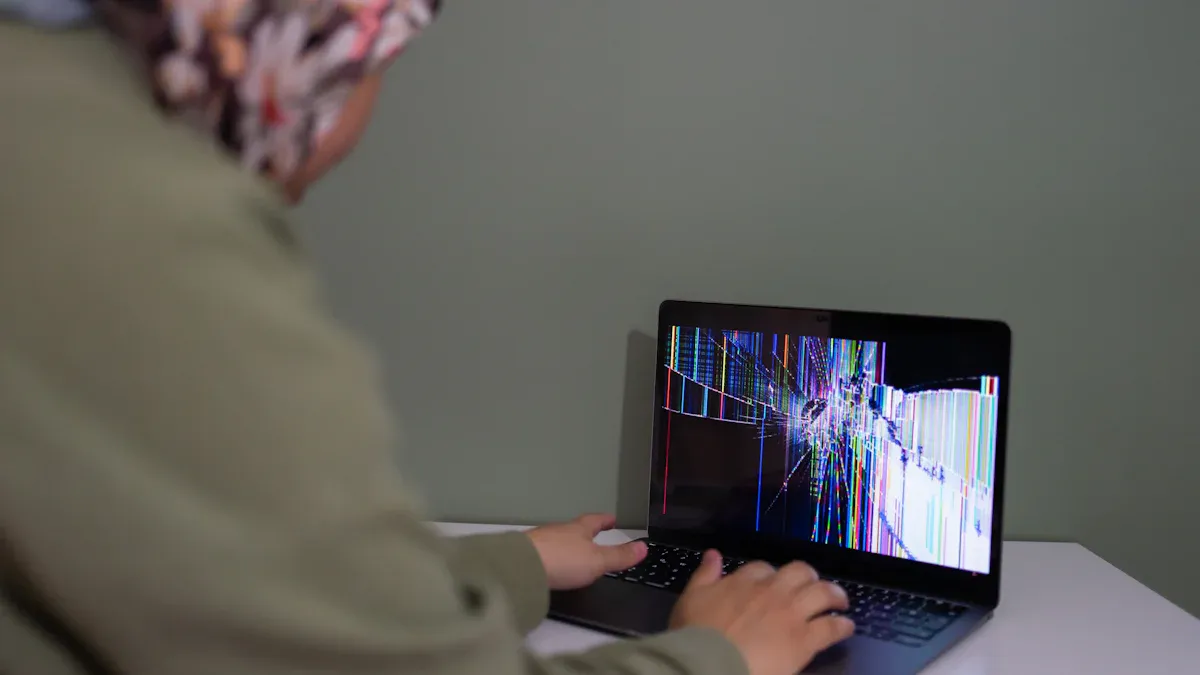
A black screen, green tint, or shadow image on an industrial monitor can come from the display, but it can also originate in the power supply, signal cable, graphics output, controller board, panel timing, software, or installation environment. Replacing the LCD before separating those causes wastes time and may leave the original problem unresolved.
Use the symptom-based process below to isolate the fault and collect the evidence a monitor supplier or system integrator needs.
First determine whether the monitor has power
Check the power indicator, backlight, touch-controller connection, and any on-screen display. Shine a flashlight across the panel at an angle: a faint image with no visible backlight points toward the backlight driver, LED string, brightness control, or power rail rather than the video source.
- Measure voltage at the monitor under load, not only at the power supply.
- Inspect ground continuity and connector retention.
- Check startup voltage drop and transient behavior.
- Compare cold start with operation after the enclosure is warm.
Symptom matrix
| Symptom | Common cause group | First isolation test |
|---|---|---|
| Backlight on, no image | Signal, timing, graphics output, controller board | Open the monitor OSD and test a known-good source |
| Completely black, no indicator | Power input, fuse, cable, internal power board | Measure input voltage and test the power harness |
| Green or magenta tint | Missing color channel, cable, connector, LVDS/eDP link, settings | Reseat or replace the signal cable and reset color settings |
| Trailing or shadow image | Response time, panel drive, overdrive setting, signal integrity | Display a static test pattern at native timing |
| Intermittent blanking | Loose connector, EMI, power drop, thermal fault | Log voltage and temperature while reproducing the event |
Diagnose a black screen systematically
- Confirm that the host has completed booting and is producing video.
- Open the monitor on-screen display. A visible OSD proves that the panel and backlight are at least partly operating.
- Restore the native resolution and approved refresh rate.
- Use a known-good direct cable without an adapter, splitter, or extender.
- Cross-test the monitor with a known-good host and the host with a known-good monitor.
- Inspect the controller board, internal signal cable, and connectors if the external path is good.
If the fault happens only near a motor, inverter, charger, or relay transition, review grounding, shielding, cable separation, and conducted noise before replacing the display.
Find the cause of a green color tint
A strong green cast often means one color channel is missing or corrupted. On VGA systems, a bent pin or damaged cable can remove red or blue. Digital systems can show unusual colors when a cable, connector, converter, LVDS/eDP path, or controller board is marginal.
- Reset monitor color settings and disable unapproved color profiles.
- Inspect connectors for contamination, bent contacts, and incomplete insertion.
- Test a short, known-good cable.
- Compare BIOS or a built-in test pattern with the Windows application.
- Check whether the issue changes with temperature or vibration.
Separate ghosting from image retention
Motion ghosting is a trailing image caused by pixel response, overdrive behavior, or signal/timing problems. Image retention is a temporary residual pattern after static content remains for a long time. The corrective actions differ.
For motion ghosting, test native timing, reset overdrive settings, and compare at different temperatures. For retention, display changing content, reduce unnecessary brightness, and redesign static high-contrast UI elements where possible. Persistent burn-in or panel defects may require replacement.
Check environmental and integration causes
Industrial failures often appear only after the monitor is installed. Enclosure heat, cable strain, vibration, metal pressure on the panel, condensation, and electrical noise can change behavior. Reproduce the fault with the final power supply, enclosure, cables, and nearby equipment operating.
Evidence to collect before requesting support
- Monitor and LCD model, serial number, and controller-board version
- Input voltage during normal operation and during the fault
- Video interface, resolution, refresh rate, graphics driver, and cable length
- Photos or video of the symptom and connector installation
- Ambient and enclosure temperature
- Whether a known-good host, cable, or monitor changes the result
Repair, replace, or redesign?
Replace the monitor when the panel, backlight, or controller has a confirmed repeatable defect and field repair is not economical. Redesign the integration when failures follow power quality, grounding, temperature, cable routing, or enclosure pressure. A component replacement alone will not correct a system-level cause.
Explore our industrial touch monitor range, review touch-display troubleshooting guides, or send your failure evidence for engineering review.