Touch screen calibration helps align the physical touch position with the display coordinate system. For industrial HMI panels, medical devices, self-service kiosks, vehicle displays, and embedded equipment, a reliable calibration process can reduce touch offset, improve operation accuracy, and simplify field maintenance after installation, repair, system update, or controller replacement.
What Touch Screen Calibration Means
Touch screen calibration is the process of mapping touch coordinates to the correct display coordinates. When the user touches a point on the screen, the touch controller and operating system must interpret that position accurately. If the coordinate mapping is not correct, the touch point may appear shifted, stretched, reversed, or misaligned.
In many industrial systems, calibration is required after display replacement, controller replacement, operating system update, resolution change, mechanical reassembly, or field maintenance. A structured calibration solution allows customers and service teams to restore touch accuracy without replacing hardware unnecessarily.
When Does an Industrial Touch Screen Need Calibration?
After System Installation
When the touch display is installed into a machine, cabinet, kiosk, or embedded system, calibration may be needed to match the final screen orientation and resolution.
After Display or Touch Controller Replacement
Service replacement can change coordinate mapping, firmware settings, or controller parameters, especially in customized equipment.
After Resolution or Orientation Change
If the system changes from landscape to portrait mode, or the resolution is modified, touch coordinates may need to be recalibrated.
When Touch Offset Appears
If the touch point does not match the visual button position, calibration can help correct the coordinate deviation.
After Field Maintenance
Cleaning, disassembly, cable replacement, or mechanical reassembly may require verification of touch performance.
For Large or Custom Touch Panels
Larger touch screens and non-standard aspect ratios may require a more careful calibration and validation process.
Calibration Software Support for Different Project Needs
everglory can support customers with calibration guidance based on the selected touch controller, operating system, and application environment. Depending on the project, calibration may be completed through the operating system utility, controller software, driver tool, or a customized calibration workflow.
Professional Calibration Utility
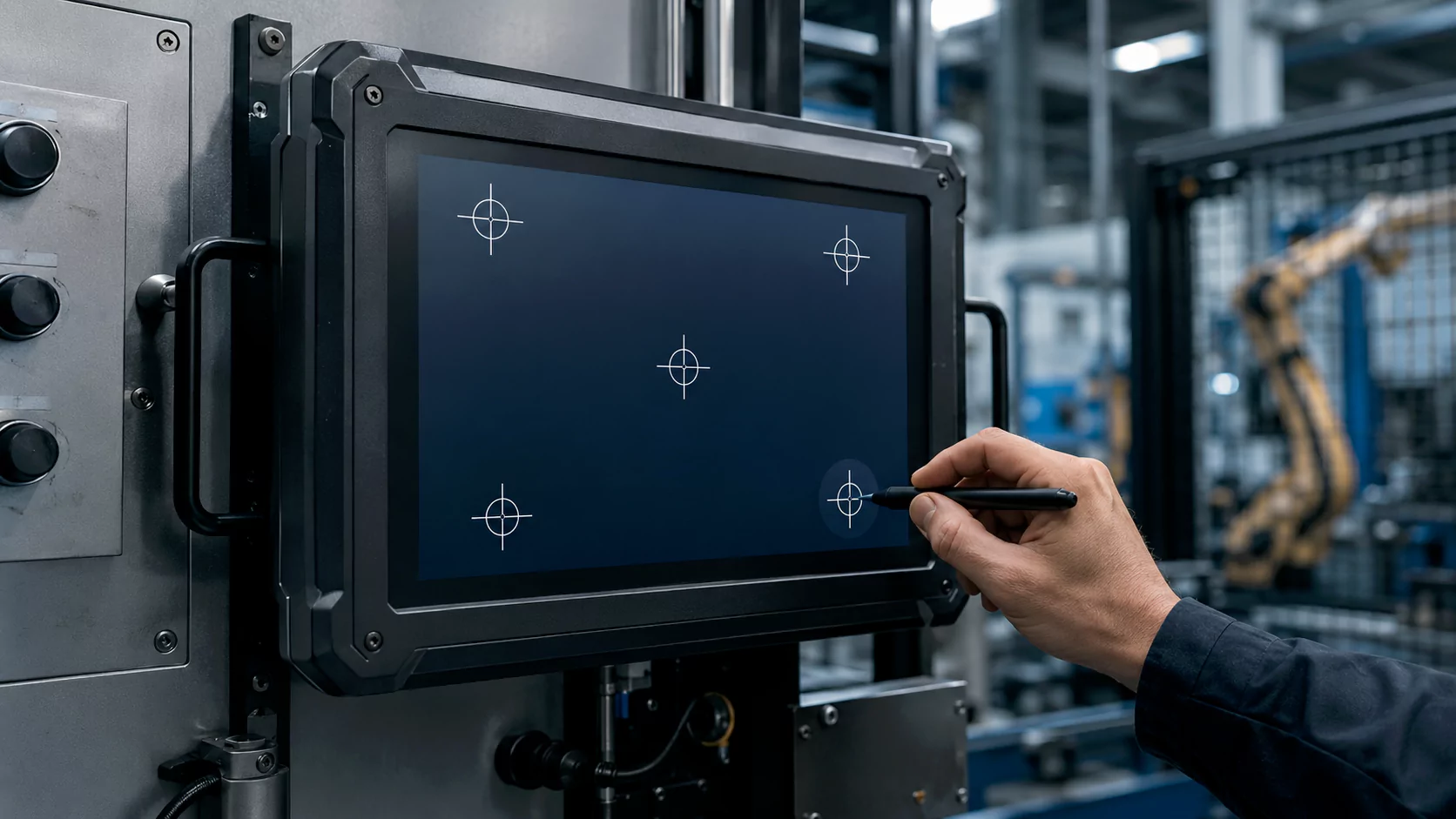
For industrial HMI, medical equipment, and OEM systems, a professional calibration workflow can support multi-point calibration, parameter saving, touch coordinate verification, and troubleshooting guidance. Typical calibration modes may include 4-point, 9-point, or more detailed point mapping depending on the controller and driver.
- Suitable for Windows, Linux, Android, or embedded platforms depending on project configuration.
- Useful for larger screens, customized structures, and equipment-level integration.
- Can help service teams verify touch position, edge accuracy, and drift symptoms.
Simplified Field Calibration Mode
For field maintenance or non-engineering users, a simplified calibration process can be prepared to reduce operation difficulty. The goal is to guide the user through a clear sequence of touch points, save parameters, and quickly verify whether the touch position has returned to normal.
- Suitable for service terminals, kiosks, control panels, and embedded equipment.
- Can reduce the need for on-site engineering support in basic coordinate-offset cases.
- Can be combined with remote technical assistance when needed.
Auxiliary Tools for More Reliable Calibration
In many cases, touch calibration can be completed by finger operation. However, for high-precision equipment, larger displays, reflective outdoor screens, or factory acceptance testing, auxiliary tools can make the process more consistent and easier to repeat.
Calibration Stylus
A suitable capacitive stylus can help operators touch the calibration target more consistently than a wide fingertip, especially on small buttons or dense user interfaces.
Positioning Guide or Template
For large-size touch screens or repeated production testing, a transparent positioning guide can help operators align calibration points and reduce human operation variation.
Touch Test Pattern
A test pattern with grid lines, buttons, edge zones, and diagonal paths can be used to verify touch accuracy after calibration.
Standard Touch Screen Calibration Process
| Step | Operation | Engineering Notes |
|---|---|---|
| 1. Environment Check | Clean the screen surface, confirm stable power supply, and avoid strong EMI sources during calibration. | Surface contamination, water droplets, or electrical noise may cause false touch points. |
| 2. System Check | Confirm display resolution, orientation, driver status, USB/I2C/serial connection, and operating system settings. | Incorrect resolution or driver mapping is a common cause of touch offset. |
| 3. Launch Calibration Tool | Start the calibration utility or operating system calibration function according to the project platform. | The correct tool depends on touch controller, driver, and system architecture. |
| 4. Multi-Point Calibration | Touch each calibration target carefully and hold briefly until the system confirms the point. | A stylus or positioning guide may improve repeatability on large or high-precision screens. |
| 5. Save Parameters | Save calibration data to the system, driver, controller, or application layer according to the design. | Make sure the settings remain valid after reboot or power cycling. |
| 6. Verify Touch Accuracy | Test buttons, corners, edges, center area, drag lines, and multi-touch behavior after calibration. | Calibration is complete only after the final application interface works correctly. |
What Calibration Can and Cannot Fix
Calibration Can Help With
- Touch coordinate offset
- Display resolution mismatch
- Landscape / portrait mapping problems
- Touch position error after screen or controller replacement
- Application interface mismatch after system update
Calibration Cannot Fully Solve
- Severe EMI or grounding problems
- Touch failure caused by water interference
- FPC, sensor, or controller hardware defects
- LCD noise coupling or bonding-related sensitivity loss
- Firmware parameters that require controller-level tuning
Why Choose everglory for Touch Screen Calibration Support?
everglory focuses on projected capacitive touch screens, touch display modules, industrial touch monitors, and customized HMI integration. For calibration-related projects, we review the complete touch system rather than treating calibration as a single software step.
Controller-Level Understanding
Calibration can be matched with touch controller firmware, driver settings, signal behavior, and touch tuning requirements.
Application-Oriented Support
We can review calibration needs for industrial HMI, kiosks, medical devices, vehicle displays, outdoor equipment, and embedded systems.
Remote and Project Support
For field issues, we can help customers check symptoms, confirm software settings, and decide whether calibration, firmware tuning, or hardware review is required.
Touch Screen Calibration FAQ
Will self-calibration affect the product warranty?
How often should an industrial touch screen be calibrated?
What should I do if calibration fails?
Can calibration solve touch drifting?
Can everglory provide a customized calibration workflow?
Need touch screen calibration support for your project?
Share your touch screen size, operating system, controller type, display resolution, installation method, and current touch issue. Our engineering team can help determine whether software calibration, controller tuning, or system-level troubleshooting is required.